> ## Documentation Index
> Fetch the complete documentation index at: https://docs.etherscan.io/llms.txt
> Use this file to discover all available pages before exploring further.
# Model Context Protocol (MCP)
Beta
Etherscan's MCP [(Model Context Protocol)](https://modelcontextprotocol.io) allows you to connect Etherscan and [60+ supported chain](/supported-chains) data to your AI models such as ChatGPT, Claude.
An ELI5, the MCP standard provides a list of tools that your model can call to lookup information via the Etherscan API. Yes, it is an API wrapper. This avoids common problem of LLMs making things up (hallucination) or getting blocked by captcha on a web search.
Some use cases of our beta users
* Comparing Solidity code with actual contracts deployed on chain
* Customer support for bridge transactions, if the transactions has arrived
* Portfolio management agents
## Connect
We host a Streamable HTTP MCP server at
```
https://mcp.etherscan.io/mcp
```
You will need to authenticate using your Etherscan API key, as a bearer token in the header like
```
Authorization: Bearer YourEtherscanApiKey
```
This guide is for [Codex](https://developers.openai.com/codex/quickstart) as an extension within VS Code.
Open the MCP settings from ⚙️ > MCP settings
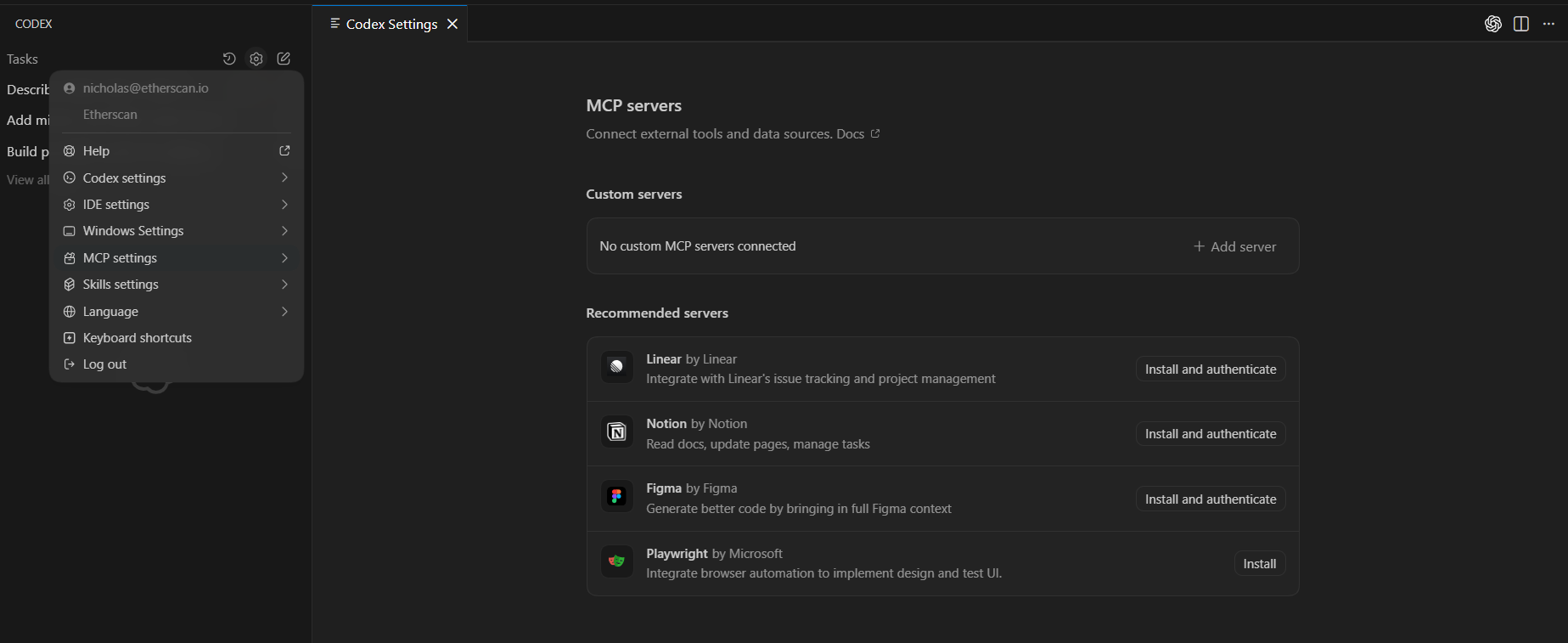 Click on Add Server, and the following details.
Name: Etherscan MCP
Server Type: Streamable HTTP
URL: [https://mcp.etherscan.io/mcp](https://mcp.etherscan.io/mcp)
Bearer token env var: Your Etherscan API Key (access to endpoints follow your usage tier)
Save and you'll see a Custom server entry.
Click on Add Server, and the following details.
Name: Etherscan MCP
Server Type: Streamable HTTP
URL: [https://mcp.etherscan.io/mcp](https://mcp.etherscan.io/mcp)
Bearer token env var: Your Etherscan API Key (access to endpoints follow your usage tier)
Save and you'll see a Custom server entry.