> ## Documentation Index
> Fetch the complete documentation index at: https://docs.etherscan.io/llms.txt
> Use this file to discover all available pages before exploring further.
# Docs MCP
> Let AI agents search the Etherscan API documentation directly through MCP.
The Docs MCP server lets an AI agent search and read this documentation, so it can find the right endpoint, its parameters, and an example before writing code or making a call. It is the knowledge counterpart to the [Etherscan MCP](/build-with-ai/mcp): one answers questions about the API, the other returns live onchain data.
Docs MCP is for AI agents that search these docs while they build. No API key is needed, since it only reads public documentation.
## Connection details
Point your MCP client at the server with these values. For guided, per-client setup, see Get started below.
```
https://docs.etherscan.io/mcp
```
* **Transport:** Streamable HTTP.
* **Authentication:** none. The server reads only public documentation.
## Get started
Pick your client below and follow it end to end.
[Claude Desktop](https://claude.ai/download) is Anthropic's desktop chat app.
In Claude Desktop, open **Settings > Developer > Edit Config** to open the `claude_desktop_config.json` file.
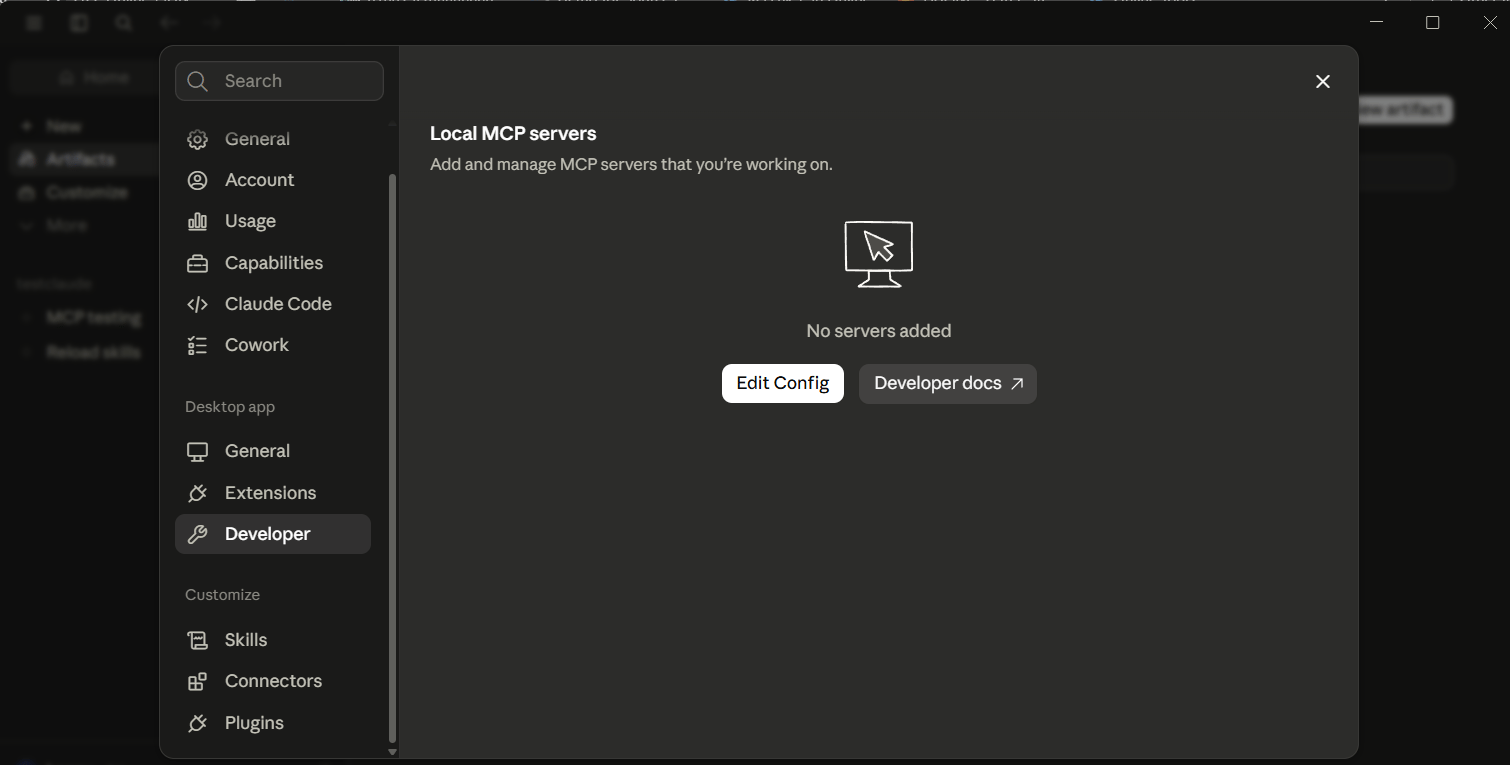 In the file that opens, add the `etherscan-docs` server:
```json claude_desktop_config.json theme={null}
{
"mcpServers": {
"etherscan-docs": {
"command": "npx",
"args": [
"-y",
"mcp-remote",
"https://docs.etherscan.io/mcp"
]
}
}
}
```
Requires [Node.js](https://nodejs.org).
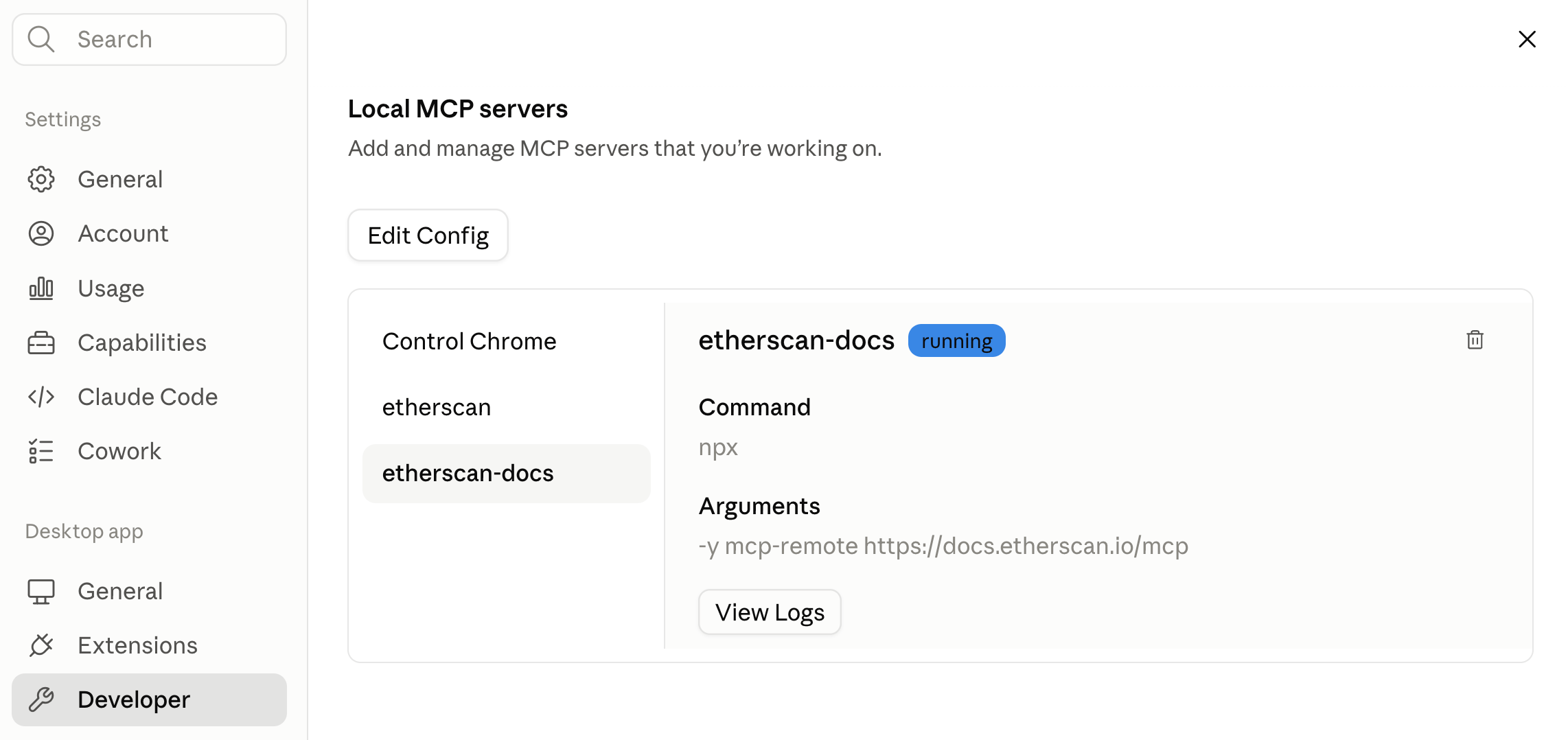
Save, then fully quit Claude Desktop and reopen it. Open **Settings > Developer** and look for `etherscan-docs` under Local MCP servers with a **running** badge.
In the file that opens, add the `etherscan-docs` server:
```json claude_desktop_config.json theme={null}
{
"mcpServers": {
"etherscan-docs": {
"command": "npx",
"args": [
"-y",
"mcp-remote",
"https://docs.etherscan.io/mcp"
]
}
}
}
```
Requires [Node.js](https://nodejs.org).
Save, then fully quit Claude Desktop and reopen it. Open **Settings > Developer** and look for `etherscan-docs` under Local MCP servers with a **running** badge.
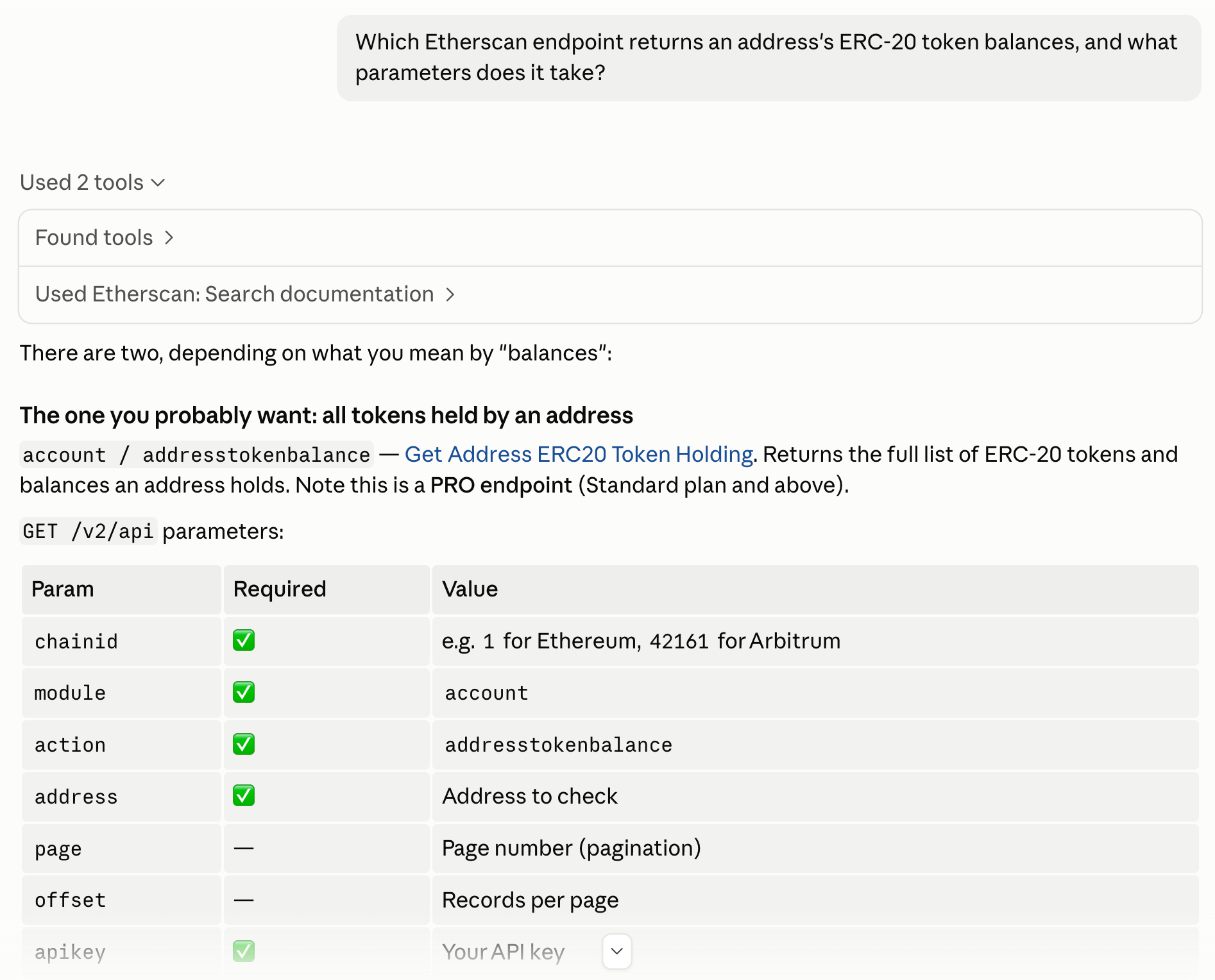
 Ask a documentation question and let the agent search these pages:
```text theme={null}
Which Etherscan endpoint returns an address's ERC-20 token balances, and what parameters does it take?
```
It calls `search_etherscan` to find the `account` module's `addresstokenbalance` action, reads its parameters and example, and answers with the correct request shape instead of guessing.
Ask a documentation question and let the agent search these pages:
```text theme={null}
Which Etherscan endpoint returns an address's ERC-20 token balances, and what parameters does it take?
```
It calls `search_etherscan` to find the `account` module's `addresstokenbalance` action, reads its parameters and example, and answers with the correct request shape instead of guessing.
 [Claude Code](https://code.claude.com/docs/en/quickstart#step-1-install-claude-code) is Anthropic's coding assistant that runs in your terminal.
Run this in your terminal:
```bash theme={null}
claude mcp add --transport http etherscan-docs https://docs.etherscan.io/mcp
```
Check the server's status and look for `Status: ✔ Connected`:
```bash theme={null}
claude mcp get etherscan-docs
```
Start a Claude Code session by running `claude`, then ask a documentation question:
```text theme={null}
Which Etherscan endpoint returns an address's ERC-20 token balances, and what parameters does it take?
```
It calls `search_etherscan` to find the `account` module's `addresstokenbalance` action, reads its parameters and example, and answers with the correct request shape instead of guessing.
[Claude Code](https://code.claude.com/docs/en/quickstart#step-1-install-claude-code) is Anthropic's coding assistant that runs in your terminal.
Run this in your terminal:
```bash theme={null}
claude mcp add --transport http etherscan-docs https://docs.etherscan.io/mcp
```
Check the server's status and look for `Status: ✔ Connected`:
```bash theme={null}
claude mcp get etherscan-docs
```
Start a Claude Code session by running `claude`, then ask a documentation question:
```text theme={null}
Which Etherscan endpoint returns an address's ERC-20 token balances, and what parameters does it take?
```
It calls `search_etherscan` to find the `account` module's `addresstokenbalance` action, reads its parameters and example, and answers with the correct request shape instead of guessing.
 Codex Desktop is the ChatGPT desktop app running OpenAI's [Codex](https://developers.openai.com/codex) agent, which can connect to MCP servers.
In Codex Desktop, open **Settings > Plugins > Add > Add MCP Server**.
Codex Desktop is the ChatGPT desktop app running OpenAI's [Codex](https://developers.openai.com/codex) agent, which can connect to MCP servers.
In Codex Desktop, open **Settings > Plugins > Add > Add MCP Server**.
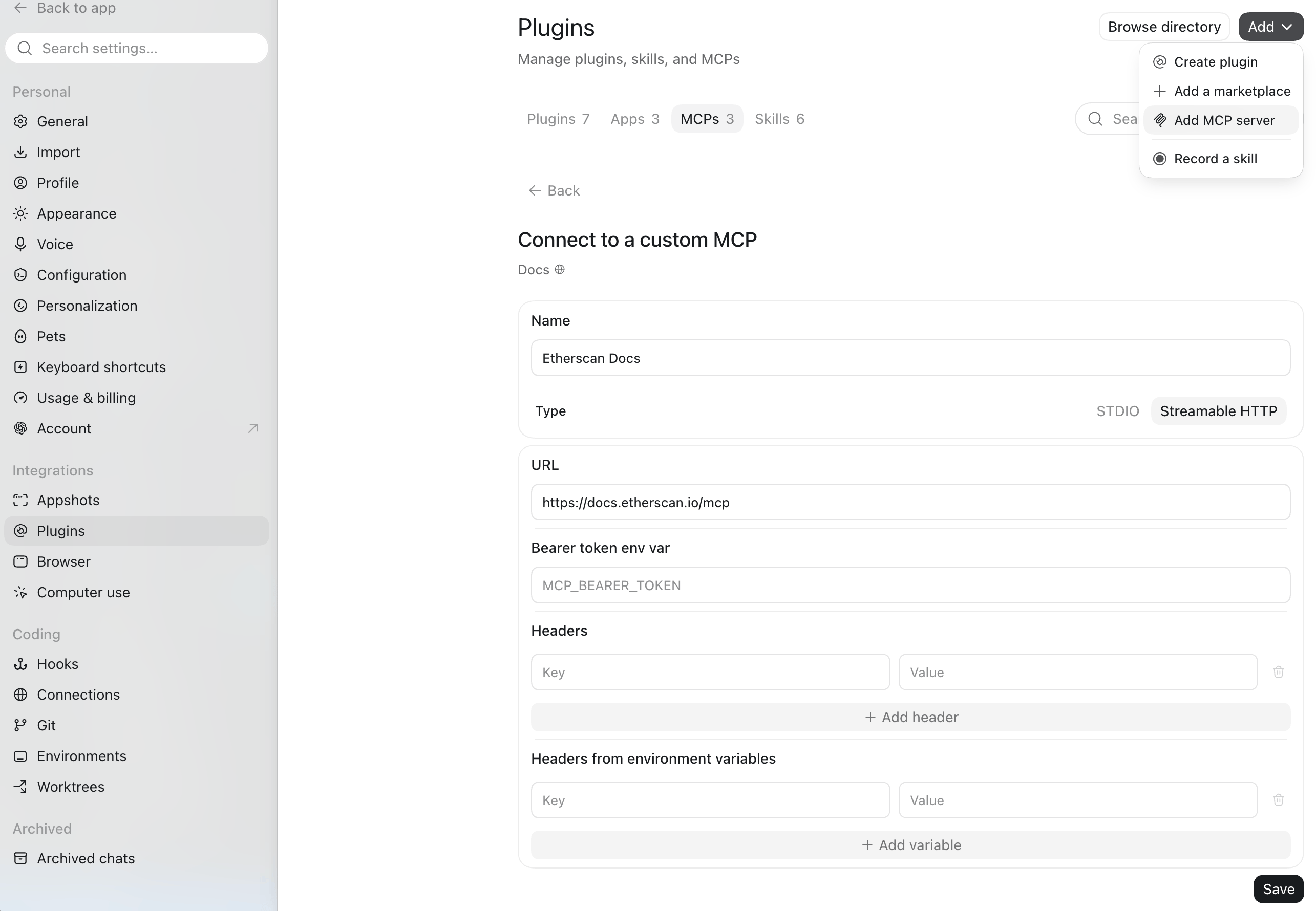 Enter the following details:
* **Name:** Etherscan Docs
* **Type:** Streamable HTTP
* **URL:** `https://docs.etherscan.io/mcp`
No headers or authentication are required.
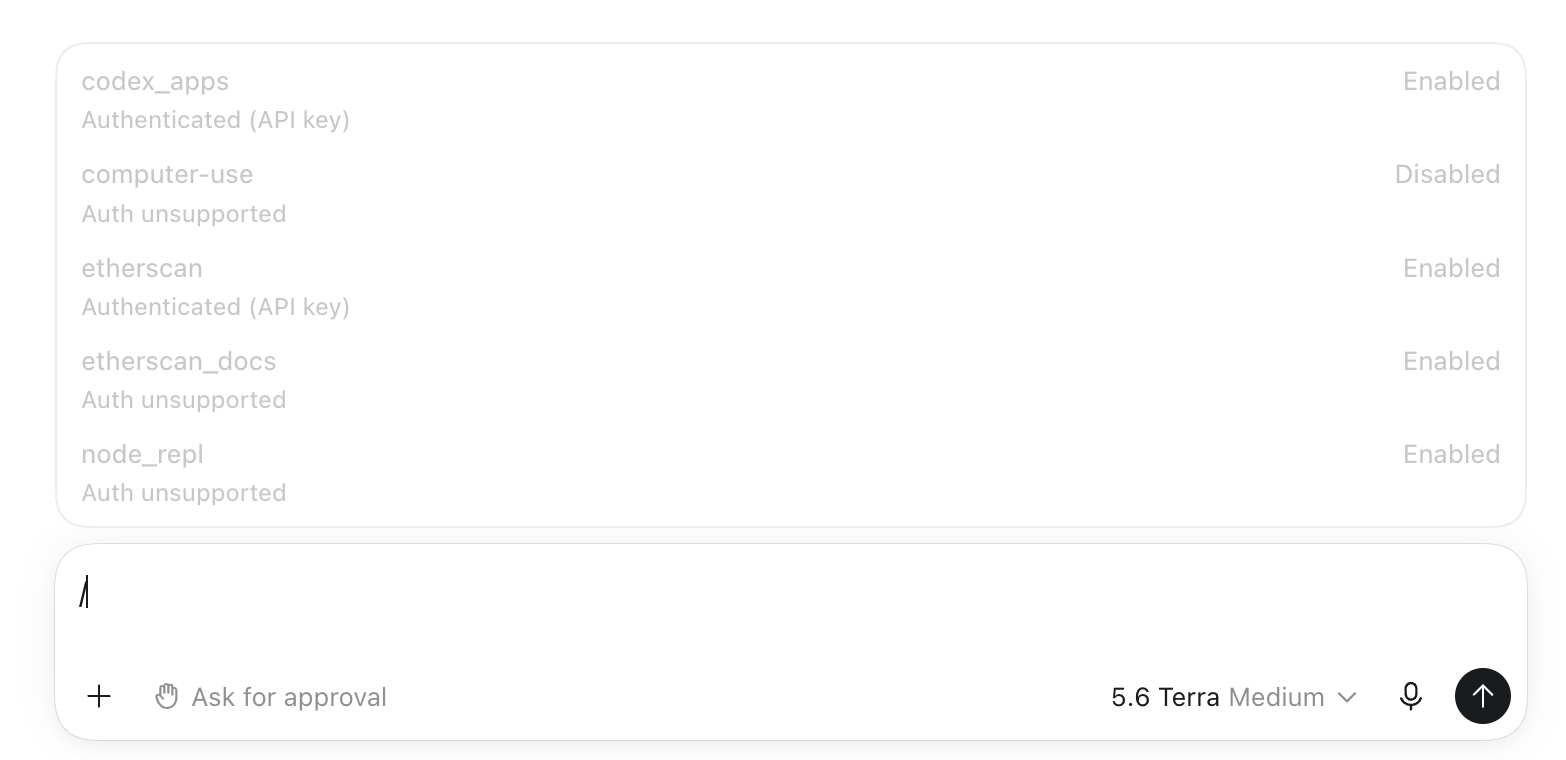
Save, then fully quit Codex Desktop and reopen it. Run `/mcp` and confirm that `etherscan-docs` is listed as an enabled server.
Enter the following details:
* **Name:** Etherscan Docs
* **Type:** Streamable HTTP
* **URL:** `https://docs.etherscan.io/mcp`
No headers or authentication are required.
Save, then fully quit Codex Desktop and reopen it. Run `/mcp` and confirm that `etherscan-docs` is listed as an enabled server.
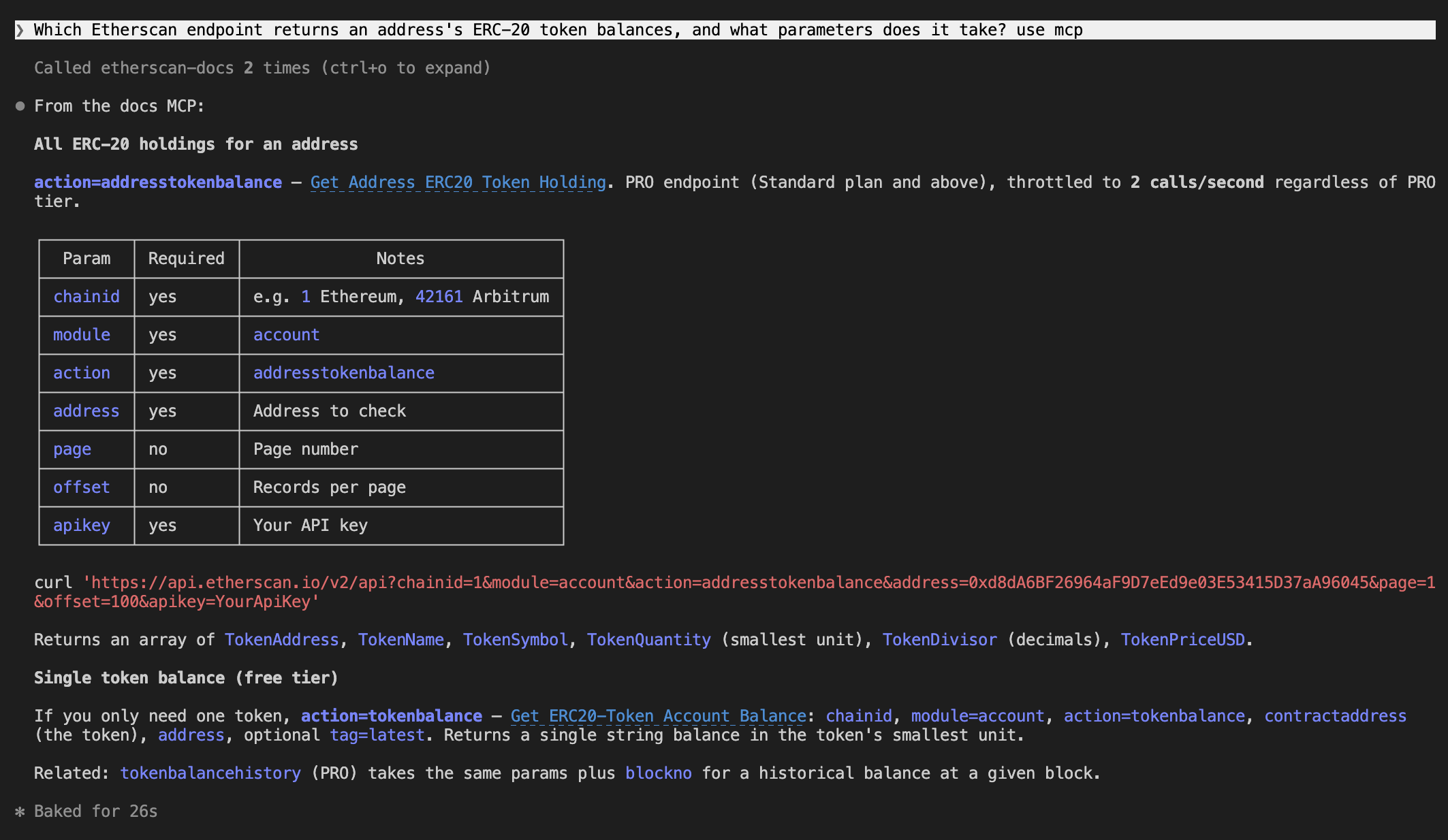
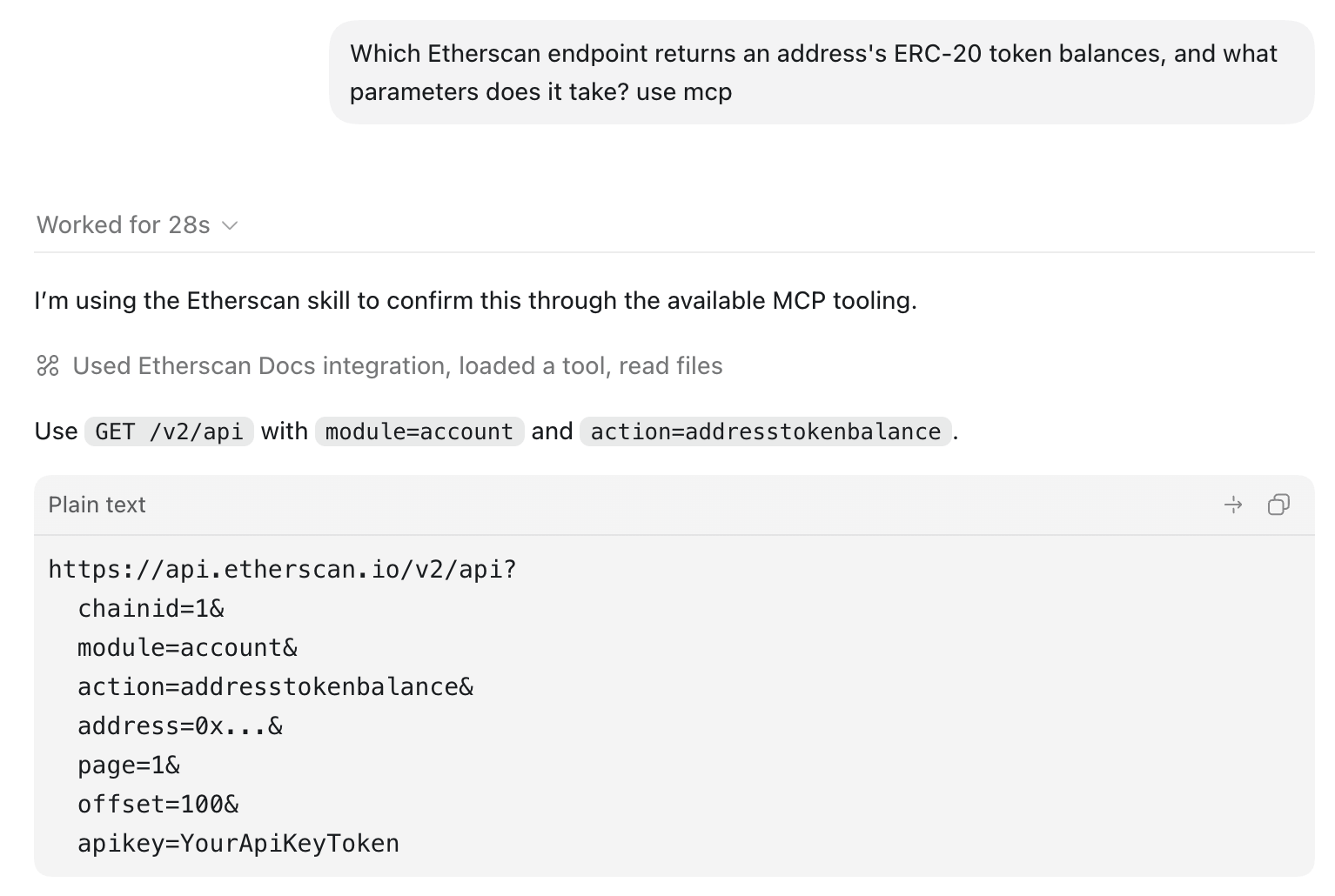
 Ask a documentation question:
```text theme={null}
Which Etherscan endpoint returns an address's ERC-20 token balances, and what parameters does it take? use mcp
```
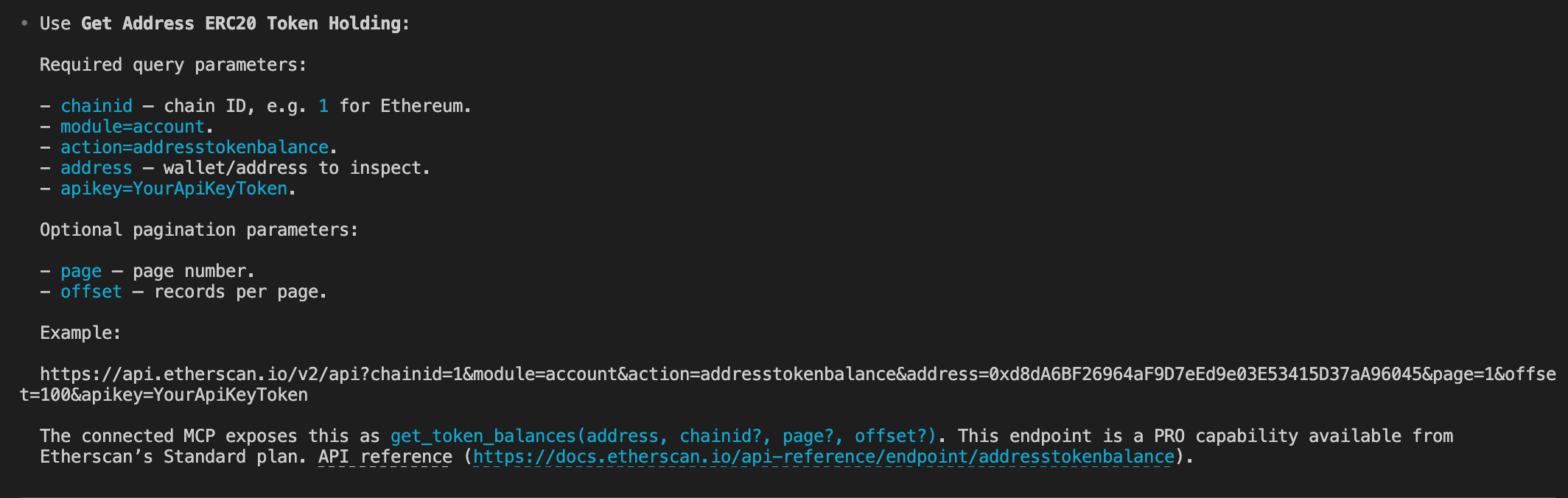
It calls `search_etherscan` to find the `account` module's `addresstokenbalance` action, reads its parameters and example, and answers with the correct request shape instead of guessing.
Ask a documentation question:
```text theme={null}
Which Etherscan endpoint returns an address's ERC-20 token balances, and what parameters does it take? use mcp
```
It calls `search_etherscan` to find the `account` module's `addresstokenbalance` action, reads its parameters and example, and answers with the correct request shape instead of guessing.
 [Codex CLI](https://learn.chatgpt.com/docs/codex/cli#getting-started) is OpenAI's coding agent in your terminal.
Run this in your terminal:
```bash theme={null}
codex mcp add etherscan-docs --url https://docs.etherscan.io/mcp
```
Check the server and look for `enabled: true`:
```bash theme={null}
codex mcp get etherscan-docs
```
Start a Codex session by running `codex`, then ask a documentation question:
```text theme={null}
Which Etherscan endpoint returns an address's ERC-20 token balances, and what parameters does it take? use mcp
```
It calls `search_etherscan` to find the `account` module's `addresstokenbalance` action, reads its parameters and example, and answers with the correct request shape instead of guessing.
[Codex CLI](https://learn.chatgpt.com/docs/codex/cli#getting-started) is OpenAI's coding agent in your terminal.
Run this in your terminal:
```bash theme={null}
codex mcp add etherscan-docs --url https://docs.etherscan.io/mcp
```
Check the server and look for `enabled: true`:
```bash theme={null}
codex mcp get etherscan-docs
```
Start a Codex session by running `codex`, then ask a documentation question:
```text theme={null}
Which Etherscan endpoint returns an address's ERC-20 token balances, and what parameters does it take? use mcp
```
It calls `search_etherscan` to find the `account` module's `addresstokenbalance` action, reads its parameters and example, and answers with the correct request shape instead of guessing.
 ## Example prompts
Ask a documentation question and let the agent search these pages. Copy one to try it:
```text theme={null}
How do I verify a contract's source code through the API, and how do I check the verification status?
```
```text theme={null}
What is the difference between the txlist and txlistinternal actions?
```
```text theme={null}
How does pagination work, and what is the maximum number of records per call?
```
```text theme={null}
Which chains are supported, and how do I switch chains in a request?
```
## Tools
The server exposes 3 tools. The agent selects and calls them for you.
| Tool | Returns |
| --------------------------------- | ------------------------------------------------------------------------------- |
| `search_etherscan` | Relevant documentation for a query: endpoints, parameters, examples, and guides |
| `query_docs_filesystem_etherscan` | Results of a read-only query over a virtual filesystem of the docs |
| `submit_feedback` | Confirmation that a reported docs problem was sent to the docs team |
## Good to know
* **No API key.** The server reads only public documentation, so no key or auth header is needed.
* **Read-only, with one exception.** The search and query tools only read the docs. `submit_feedback` sends a report to the docs team. Nothing else writes.
* **Pair it with the data tools.** The Docs MCP finds the right call. The [Etherscan MCP](/build-with-ai/mcp) or [CLI](/build-with-ai/cli) makes it.
* **Guard against prompt injection.** Enable your client's confirmation prompts, and be cautious when combining Docs MCP with other MCP servers in the same session.
No MCP client? You can point an agent at any docs page in Markdown by appending `.md` to its URL, or load the [`llms.txt`](https://docs.etherscan.io/llms.txt) index, with the complete export at [`llms-full.txt`](https://docs.etherscan.io/llms-full.txt).
## Example prompts
Ask a documentation question and let the agent search these pages. Copy one to try it:
```text theme={null}
How do I verify a contract's source code through the API, and how do I check the verification status?
```
```text theme={null}
What is the difference between the txlist and txlistinternal actions?
```
```text theme={null}
How does pagination work, and what is the maximum number of records per call?
```
```text theme={null}
Which chains are supported, and how do I switch chains in a request?
```
## Tools
The server exposes 3 tools. The agent selects and calls them for you.
| Tool | Returns |
| --------------------------------- | ------------------------------------------------------------------------------- |
| `search_etherscan` | Relevant documentation for a query: endpoints, parameters, examples, and guides |
| `query_docs_filesystem_etherscan` | Results of a read-only query over a virtual filesystem of the docs |
| `submit_feedback` | Confirmation that a reported docs problem was sent to the docs team |
## Good to know
* **No API key.** The server reads only public documentation, so no key or auth header is needed.
* **Read-only, with one exception.** The search and query tools only read the docs. `submit_feedback` sends a report to the docs team. Nothing else writes.
* **Pair it with the data tools.** The Docs MCP finds the right call. The [Etherscan MCP](/build-with-ai/mcp) or [CLI](/build-with-ai/cli) makes it.
* **Guard against prompt injection.** Enable your client's confirmation prompts, and be cautious when combining Docs MCP with other MCP servers in the same session.
No MCP client? You can point an agent at any docs page in Markdown by appending `.md` to its URL, or load the [`llms.txt`](https://docs.etherscan.io/llms.txt) index, with the complete export at [`llms-full.txt`](https://docs.etherscan.io/llms-full.txt).