> ## Documentation Index
> Fetch the complete documentation index at: https://docs.etherscan.io/llms.txt
> Use this file to discover all available pages before exploring further.
# Etherscan MCP
> Connect AI agents to live Etherscan API data through the Model Context Protocol.
The Etherscan MCP server connects AI agents to live onchain data across all 60+ [supported chains](/supported-chains), over [MCP](https://modelcontextprotocol.io). Connect it to a client like Claude Desktop, Claude Code, or Codex, then ask in plain language and get answers grounded in real Etherscan API responses.
 One connection covers every chain, just pass the `chainid`. Ask about Arbitrum and the agent uses `chainid=42161`. See [Supported chains](/supported-chains) for the full list.
## Get started
First, [create a free API key](/set-up-your-api-key) if you do not have one. Then pick your client below and follow it end to end.
[Claude Desktop](https://claude.ai/download) is Anthropic's desktop chat app.
In Claude Desktop, open **Settings > Developer > Edit Config** to open the `claude_desktop_config.json` file.
One connection covers every chain, just pass the `chainid`. Ask about Arbitrum and the agent uses `chainid=42161`. See [Supported chains](/supported-chains) for the full list.
## Get started
First, [create a free API key](/set-up-your-api-key) if you do not have one. Then pick your client below and follow it end to end.
[Claude Desktop](https://claude.ai/download) is Anthropic's desktop chat app.
In Claude Desktop, open **Settings > Developer > Edit Config** to open the `claude_desktop_config.json` file.
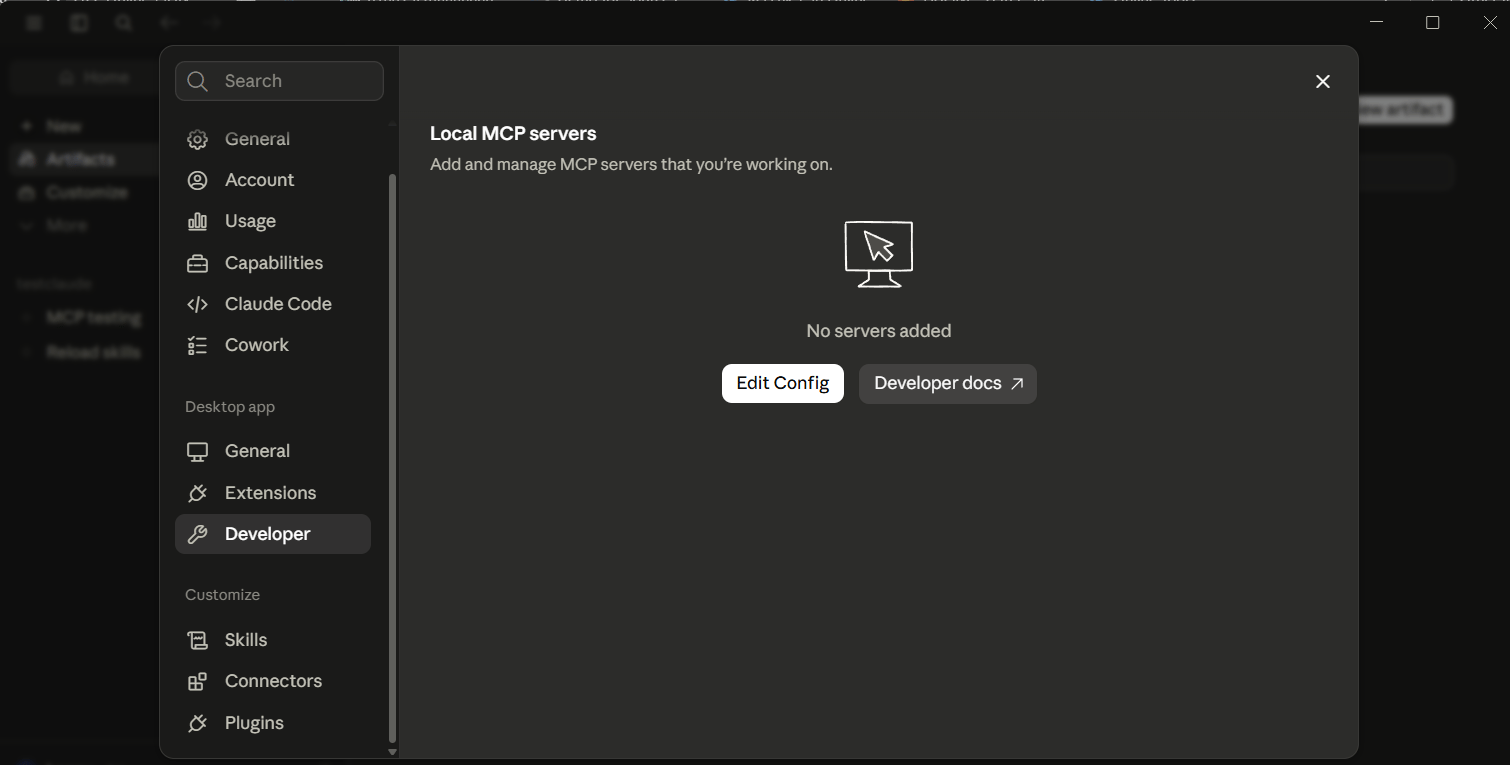 In the file that opens, add the `etherscan` server (replace `YourApiKey` with your key):
```json claude_desktop_config.json theme={null}
{
"mcpServers": {
"etherscan": {
"command": "npx",
"args": [
"-y",
"mcp-remote",
"https://mcp.etherscan.io/mcp",
"--header",
"Authorization:${AUTH_TOKEN}"
],
"env": {
"AUTH_TOKEN": "Bearer YourApiKey"
}
}
}
}
```
Requires [Node.js](https://nodejs.org).
Save, then fully quit Claude Desktop and reopen it. Then open **Settings > Developer** and look for `etherscan` under Local MCP servers with a **running** badge.
In the file that opens, add the `etherscan` server (replace `YourApiKey` with your key):
```json claude_desktop_config.json theme={null}
{
"mcpServers": {
"etherscan": {
"command": "npx",
"args": [
"-y",
"mcp-remote",
"https://mcp.etherscan.io/mcp",
"--header",
"Authorization:${AUTH_TOKEN}"
],
"env": {
"AUTH_TOKEN": "Bearer YourApiKey"
}
}
}
}
```
Requires [Node.js](https://nodejs.org).
Save, then fully quit Claude Desktop and reopen it. Then open **Settings > Developer** and look for `etherscan` under Local MCP servers with a **running** badge.
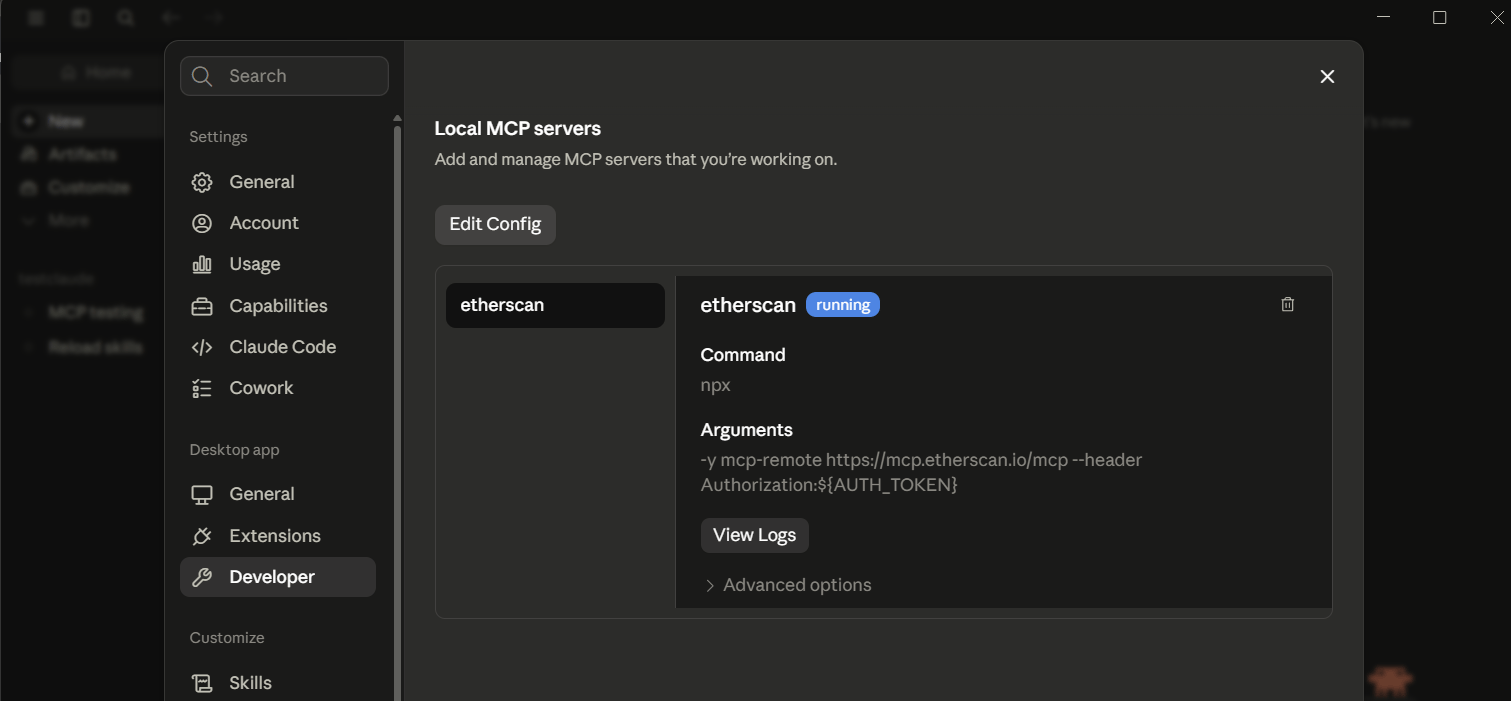 Ask in plain language and approve the tool calls when prompted:
```text theme={null}
Give me a one-liner summary for this transaction: 0xa44757750f25d11d8d22434a68c39c6962a55ddf369ce202624950ada3080acf
```
In this example, it calls two tools:
* `get_transaction_by_hash` for the sender, recipient, amount, and input data
* `get_transaction_receipt` to confirm the transaction succeeded
It then answers with a one-line summary. Both tools work on the free API plan.
Ask in plain language and approve the tool calls when prompted:
```text theme={null}
Give me a one-liner summary for this transaction: 0xa44757750f25d11d8d22434a68c39c6962a55ddf369ce202624950ada3080acf
```
In this example, it calls two tools:
* `get_transaction_by_hash` for the sender, recipient, amount, and input data
* `get_transaction_receipt` to confirm the transaction succeeded
It then answers with a one-line summary. Both tools work on the free API plan.
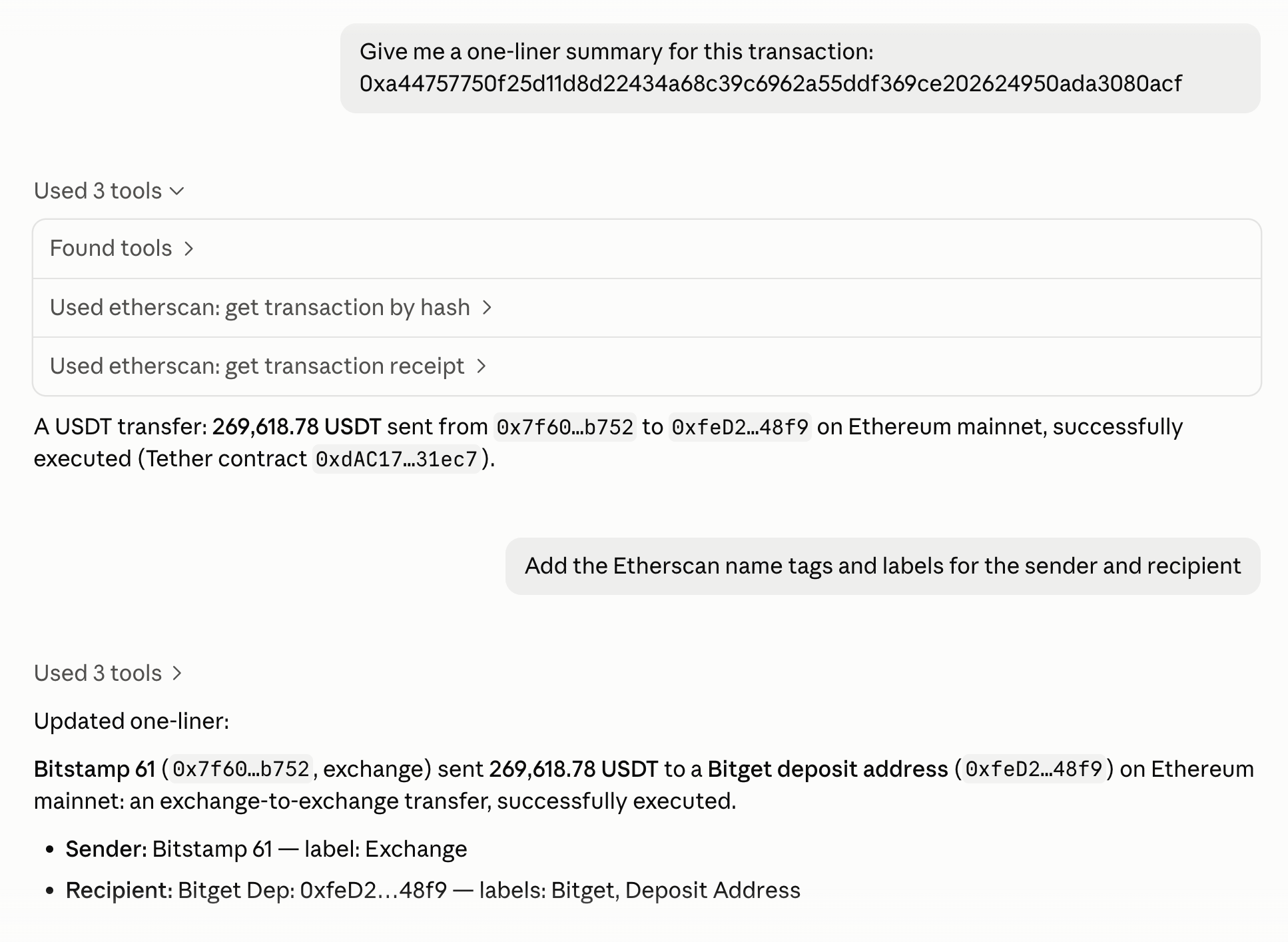 To label the addresses involved with their Etherscan name tags, follow up with:
```text theme={null}
Add the Etherscan name tags and labels for the sender and recipient
```
This uses `get_address_labels`, a Pro tool that requires a [paid plan](https://etherscan.io/api/pricing).
[Claude Code](https://code.claude.com/docs/en/quickstart#step-1-install-claude-code) is Anthropic's coding assistant that runs in your terminal.
Run this in your terminal, replacing `YourApiKey` with your key:
```bash theme={null}
claude mcp add --transport http etherscan \
https://mcp.etherscan.io/mcp \
--header "Authorization: Bearer YourApiKey"
```
Check the server's status and look for `Status: ✔ Connected`:
```bash theme={null}
claude mcp get etherscan
```
Start a Claude Code session by running `claude`, then ask in plain language and let the agent pick the tools:
```text theme={null}
Give me a one-liner summary for this transaction: 0xa44757750f25d11d8d22434a68c39c6962a55ddf369ce202624950ada3080acf
```
In this example, it calls the tool `get_transaction_by_hash` for the sender, recipient, amount, and input data. It then answers with a one-line summary. This tool works on the free API plan.
To label the addresses involved with their Etherscan name tags, follow up with:
```text theme={null}
Add the Etherscan name tags and labels for the sender and recipient
```
This uses `get_address_labels`, a Pro tool that requires a [paid plan](https://etherscan.io/api/pricing).
[Claude Code](https://code.claude.com/docs/en/quickstart#step-1-install-claude-code) is Anthropic's coding assistant that runs in your terminal.
Run this in your terminal, replacing `YourApiKey` with your key:
```bash theme={null}
claude mcp add --transport http etherscan \
https://mcp.etherscan.io/mcp \
--header "Authorization: Bearer YourApiKey"
```
Check the server's status and look for `Status: ✔ Connected`:
```bash theme={null}
claude mcp get etherscan
```
Start a Claude Code session by running `claude`, then ask in plain language and let the agent pick the tools:
```text theme={null}
Give me a one-liner summary for this transaction: 0xa44757750f25d11d8d22434a68c39c6962a55ddf369ce202624950ada3080acf
```
In this example, it calls the tool `get_transaction_by_hash` for the sender, recipient, amount, and input data. It then answers with a one-line summary. This tool works on the free API plan.
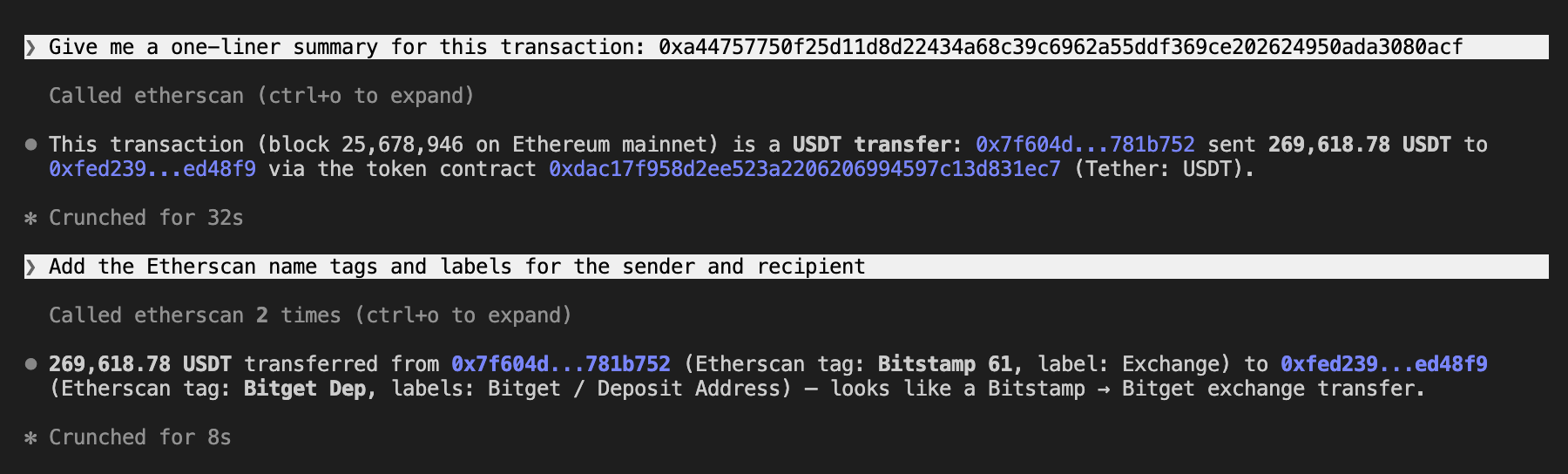 To label the addresses involved with their Etherscan name tags, follow up with:
```text theme={null}
Add the Etherscan name tags and labels for the sender and recipient
```
This uses `get_address_labels`, a Pro tool that requires a [paid plan](https://etherscan.io/api/pricing).
Codex Desktop is the ChatGPT desktop app running OpenAI's [Codex](https://developers.openai.com/codex) agent, which can connect to MCP servers.
In Codex Desktop, open **Settings > Plugins > Add > Add MCP Server**.
To label the addresses involved with their Etherscan name tags, follow up with:
```text theme={null}
Add the Etherscan name tags and labels for the sender and recipient
```
This uses `get_address_labels`, a Pro tool that requires a [paid plan](https://etherscan.io/api/pricing).
Codex Desktop is the ChatGPT desktop app running OpenAI's [Codex](https://developers.openai.com/codex) agent, which can connect to MCP servers.
In Codex Desktop, open **Settings > Plugins > Add > Add MCP Server**.
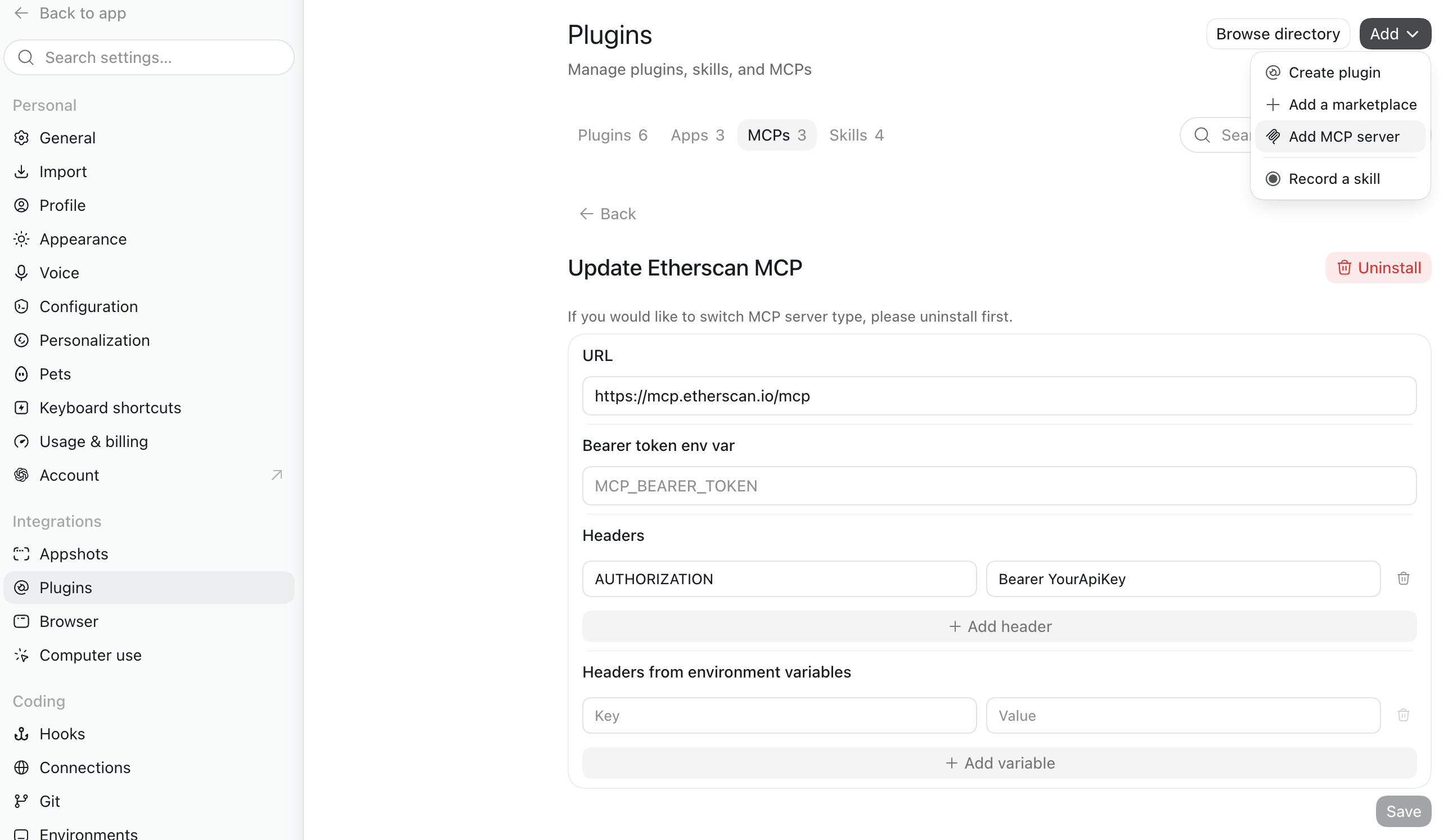 Enter the following server details (replace `YourApiKey` with your key):
* **Name:** Etherscan MCP
* **Type:** Streamable HTTP
* **URL:** `https://mcp.etherscan.io/mcp`
* **Headers:** `Key=AUTHORIZATION`, `Value=Bearer YourApiKey`
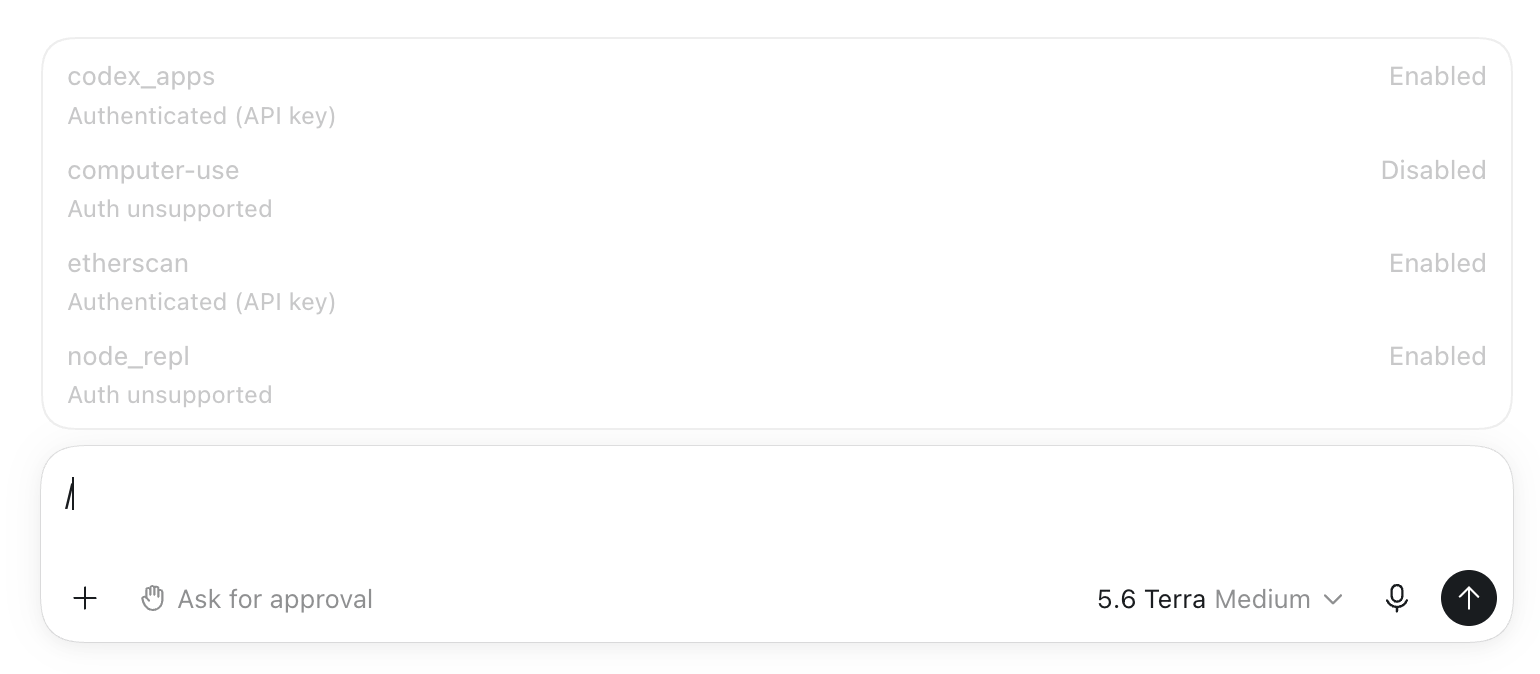
Save, then fully quit Codex Desktop and reopen it. Then run `/mcp` and confirm that `etherscan` is listed as an enabled server.
Enter the following server details (replace `YourApiKey` with your key):
* **Name:** Etherscan MCP
* **Type:** Streamable HTTP
* **URL:** `https://mcp.etherscan.io/mcp`
* **Headers:** `Key=AUTHORIZATION`, `Value=Bearer YourApiKey`
Save, then fully quit Codex Desktop and reopen it. Then run `/mcp` and confirm that `etherscan` is listed as an enabled server.
 Ask in plain language:
```text theme={null}
Give me a one-liner summary for this transaction: 0xa44757750f25d11d8d22434a68c39c6962a55ddf369ce202624950ada3080acf. use mcp
```
In this example, it calls two tools:
* `get_transaction_by_hash` for the sender, recipient, amount, and input data
* `get_transaction_receipt` to confirm the transaction succeeded
It then answers with a one-line summary. Both tools work on the free API plan.
Ask in plain language:
```text theme={null}
Give me a one-liner summary for this transaction: 0xa44757750f25d11d8d22434a68c39c6962a55ddf369ce202624950ada3080acf. use mcp
```
In this example, it calls two tools:
* `get_transaction_by_hash` for the sender, recipient, amount, and input data
* `get_transaction_receipt` to confirm the transaction succeeded
It then answers with a one-line summary. Both tools work on the free API plan.
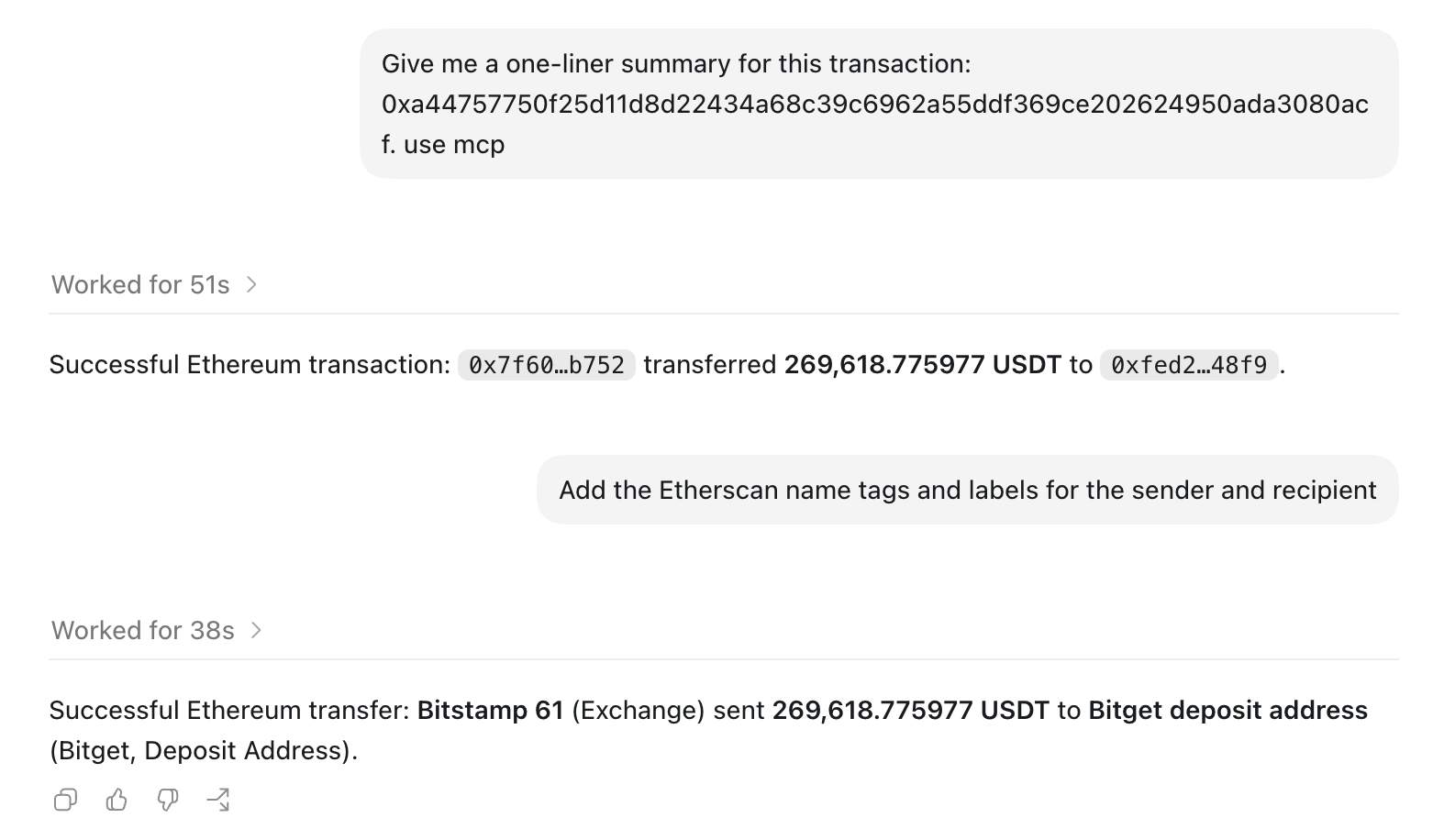 To label the addresses involved with their Etherscan name tags, follow up with:
```text theme={null}
Add the Etherscan name tags and labels for the sender and recipient
```
This uses `get_address_labels`, a Pro tool that requires a [paid plan](https://etherscan.io/api/pricing).
[Codex CLI](https://learn.chatgpt.com/docs/codex/cli#getting-started) is OpenAI's coding agent in your terminal.
Run this in your terminal (replace `YourApiKey` with your key):
```bash theme={null}
export ETHERSCAN_API_KEY=YourApiKey
```
Run this in your terminal:
```bash theme={null}
codex mcp add etherscan \
--url https://mcp.etherscan.io/mcp \
--bearer-token-env-var ETHERSCAN_API_KEY
```
Check the server and look for `enabled: true`:
```bash theme={null}
codex mcp get etherscan
```
Start a Codex session by running `codex`, then ask in plain language and let the agent pick the tools:
```text theme={null}
Give me a one-liner summary for this transaction: 0xa44757750f25d11d8d22434a68c39c6962a55ddf369ce202624950ada3080acf. use mcp
```
In this example, it calls two tools:
* `get_transaction_by_hash` for the sender, recipient, amount, and input data
* `get_transaction_receipt` to confirm the transaction succeeded
It then answers with a one-line summary. Both tools work on the free API plan.
To label the addresses involved with their Etherscan name tags, follow up with:
```text theme={null}
Add the Etherscan name tags and labels for the sender and recipient
```
This uses `get_address_labels`, a Pro tool that requires a [paid plan](https://etherscan.io/api/pricing).
[Codex CLI](https://learn.chatgpt.com/docs/codex/cli#getting-started) is OpenAI's coding agent in your terminal.
Run this in your terminal (replace `YourApiKey` with your key):
```bash theme={null}
export ETHERSCAN_API_KEY=YourApiKey
```
Run this in your terminal:
```bash theme={null}
codex mcp add etherscan \
--url https://mcp.etherscan.io/mcp \
--bearer-token-env-var ETHERSCAN_API_KEY
```
Check the server and look for `enabled: true`:
```bash theme={null}
codex mcp get etherscan
```
Start a Codex session by running `codex`, then ask in plain language and let the agent pick the tools:
```text theme={null}
Give me a one-liner summary for this transaction: 0xa44757750f25d11d8d22434a68c39c6962a55ddf369ce202624950ada3080acf. use mcp
```
In this example, it calls two tools:
* `get_transaction_by_hash` for the sender, recipient, amount, and input data
* `get_transaction_receipt` to confirm the transaction succeeded
It then answers with a one-line summary. Both tools work on the free API plan.
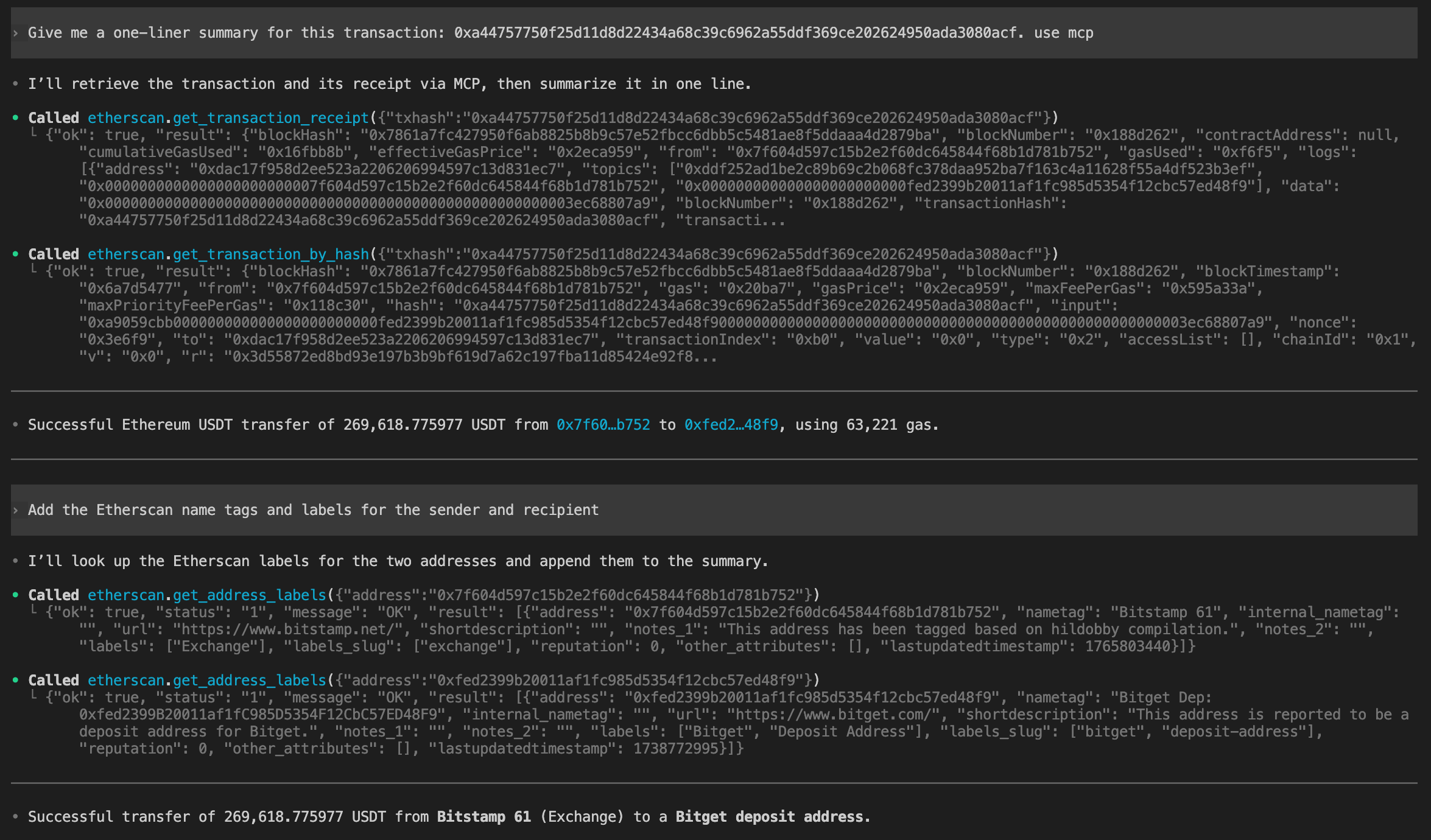 To label the addresses involved with their Etherscan name tags, follow up with:
```text theme={null}
Add the Etherscan name tags and labels for the sender and recipient
```
This uses `get_address_labels`, a Pro tool that requires a [paid plan](https://etherscan.io/api/pricing).
## Example prompts
Ask in plain language and let the agent pick the tools. Copy one to try it:
```text theme={null}
Build a wallet snapshot for 0xd8dA6BF26964aF9D7eEd9e03E53415D37aA96045 on Ethereum and Arbitrum: native balance, top token holdings, and the 10 most recent transactions.
```
```text theme={null}
Is 0xdAC17F958D2ee523a2206206994597C13D831ec7 verified? Summarize what the contract does and who deployed it.
```
```text theme={null}
Who are the top 10 holders of USDT (0xdAC17F958D2ee523a2206206994597C13D831ec7), and what share does each hold?
```
```text theme={null}
Trace transaction 0x: show its internal transfers and whether it succeeded.
```
```text theme={null}
Resolve vitalik.eth, show its balance, and include any name tags or labels Etherscan has for it.
```
## Tools
The server exposes 20 tools. The agent selects and calls them for you; you rarely name a tool yourself.
| Category | Tool | Returns |
| -------------------- | -------------------------------- | --------------------------------------------------------------------------- |
| Balances | `get_native_balance` | Native coin balance for an address |
| | `get_token_balances` | ERC-20 token holdings for an address, with USD values |
| Transactions | `get_transactions` | Normal (external) transactions an address signed |
| | `get_internal_transactions` | Contract-triggered internal transfers for an address |
| | `get_transaction_by_hash` | Full transaction details for a hash: sender, recipient, value, input, gas |
| | `get_transaction_receipt` | Receipt for a transaction: status, gas used, logs, and any created contract |
| | `get_transaction_status` | Contract execution status for a transaction |
| | `get_transaction_receipt_status` | Receipt status (success or fail) for a transaction |
| Transfers | `get_token_transfers` | Token transfers for an address or contract: ERC-20, ERC-721, or ERC-1155 |
| Tokens | `get_token_info` | Project and metadata for a token contract |
| | `get_token_top_holders` | Largest holders of a token |
| Contracts | `get_contract_source` | Verified source code for a contract |
| | `get_contract_abi` | ABI for a verified contract |
| | `get_contract_creation` | Deployer address and creation transaction for a contract |
| Logs | `get_logs` | Event logs filtered by contract address and topics over a block range |
| Address intelligence | `get_address_labels` | Etherscan name tag, labels, and attributes for an address |
| | `get_funded_by` | The address and transaction that first funded an address |
| Network | `get_supported_chains` | Supported chains and their chain IDs |
| | `get_gas_oracle` | Current gas price recommendations |
| | `get_block_by_timestamp` | The block number at a given timestamp |
## Good to know
* **Read-only.** Every tool reads public onchain data. Nothing signs or sends a transaction.
* **Every tool call uses your API quota.** Each MCP tool call makes one or more Etherscan API requests, and every request counts toward your API plan's rate limits, exactly like calling the API directly. See [Rate limits](/rate-limits).
* **Guard against prompt injection.** Enable your client's human-confirmation prompts, and be cautious when combining Etherscan with other MCP servers in the same session.
To label the addresses involved with their Etherscan name tags, follow up with:
```text theme={null}
Add the Etherscan name tags and labels for the sender and recipient
```
This uses `get_address_labels`, a Pro tool that requires a [paid plan](https://etherscan.io/api/pricing).
## Example prompts
Ask in plain language and let the agent pick the tools. Copy one to try it:
```text theme={null}
Build a wallet snapshot for 0xd8dA6BF26964aF9D7eEd9e03E53415D37aA96045 on Ethereum and Arbitrum: native balance, top token holdings, and the 10 most recent transactions.
```
```text theme={null}
Is 0xdAC17F958D2ee523a2206206994597C13D831ec7 verified? Summarize what the contract does and who deployed it.
```
```text theme={null}
Who are the top 10 holders of USDT (0xdAC17F958D2ee523a2206206994597C13D831ec7), and what share does each hold?
```
```text theme={null}
Trace transaction 0x: show its internal transfers and whether it succeeded.
```
```text theme={null}
Resolve vitalik.eth, show its balance, and include any name tags or labels Etherscan has for it.
```
## Tools
The server exposes 20 tools. The agent selects and calls them for you; you rarely name a tool yourself.
| Category | Tool | Returns |
| -------------------- | -------------------------------- | --------------------------------------------------------------------------- |
| Balances | `get_native_balance` | Native coin balance for an address |
| | `get_token_balances` | ERC-20 token holdings for an address, with USD values |
| Transactions | `get_transactions` | Normal (external) transactions an address signed |
| | `get_internal_transactions` | Contract-triggered internal transfers for an address |
| | `get_transaction_by_hash` | Full transaction details for a hash: sender, recipient, value, input, gas |
| | `get_transaction_receipt` | Receipt for a transaction: status, gas used, logs, and any created contract |
| | `get_transaction_status` | Contract execution status for a transaction |
| | `get_transaction_receipt_status` | Receipt status (success or fail) for a transaction |
| Transfers | `get_token_transfers` | Token transfers for an address or contract: ERC-20, ERC-721, or ERC-1155 |
| Tokens | `get_token_info` | Project and metadata for a token contract |
| | `get_token_top_holders` | Largest holders of a token |
| Contracts | `get_contract_source` | Verified source code for a contract |
| | `get_contract_abi` | ABI for a verified contract |
| | `get_contract_creation` | Deployer address and creation transaction for a contract |
| Logs | `get_logs` | Event logs filtered by contract address and topics over a block range |
| Address intelligence | `get_address_labels` | Etherscan name tag, labels, and attributes for an address |
| | `get_funded_by` | The address and transaction that first funded an address |
| Network | `get_supported_chains` | Supported chains and their chain IDs |
| | `get_gas_oracle` | Current gas price recommendations |
| | `get_block_by_timestamp` | The block number at a given timestamp |
## Good to know
* **Read-only.** Every tool reads public onchain data. Nothing signs or sends a transaction.
* **Every tool call uses your API quota.** Each MCP tool call makes one or more Etherscan API requests, and every request counts toward your API plan's rate limits, exactly like calling the API directly. See [Rate limits](/rate-limits).
* **Guard against prompt injection.** Enable your client's human-confirmation prompts, and be cautious when combining Etherscan with other MCP servers in the same session.