> ## Documentation Index
> Fetch the complete documentation index at: https://docs.etherscan.io/llms.txt
> Use this file to discover all available pages before exploring further.
# Etherscan Orchestrator
> The general skill that routes any onchain task to the right Etherscan interface: explorer website, API, CLI, or MCP.
The [Etherscan Orchestrator](https://github.com/etherscan/skills/blob/main/skills/etherscan/SKILL.md) is a skill that teaches an AI agent to pick the right Etherscan interface for a task, the [explorer website](https://etherscan.io), the [API](/endpoint-overview), the [CLI](/build-with-ai/cli), or the [MCP](/build-with-ai/mcp), then construct a correct request for it.
## Get started
Add the skill with the [skills.sh](https://skills.sh) CLI. `-g` installs it globally (user-level, so it is available in every project) and `-a '*'` installs it for every agent you have set up (Claude Code, Codex, and others):
```bash theme={null}
npx skills add https://github.com/etherscan/skills --skill etherscan -g -a '*' -y
```
Or clone the repo and move the folder into your agent's skills directory, `~/.claude/skills/` or `~/.codex/skills/`:
```bash theme={null}
git clone https://github.com/etherscan/skills.git etherscan-skills
cp -r etherscan-skills/skills/etherscan ~/.claude/skills/
```
Claude Desktop installs a skill from a ZIP you upload. Zip must contain exactly one SKILL.md file.
1. Download the [Etherscan skills repo](https://github.com/etherscan/skills/archive/refs/heads/main.zip), unzip it, and compress just the `skills-main/skills/etherscan` folder into `etherscan.zip`.
```
skills-main/
└── skills/
├── etherscan/ ← zip this folder
├── etherscan-flow/
└── etherscan-transaction-debugger/
```
2. In Claude Desktop, go to **Settings > Skills > Add > Upload a skill** and select the `etherscan.zip` file.
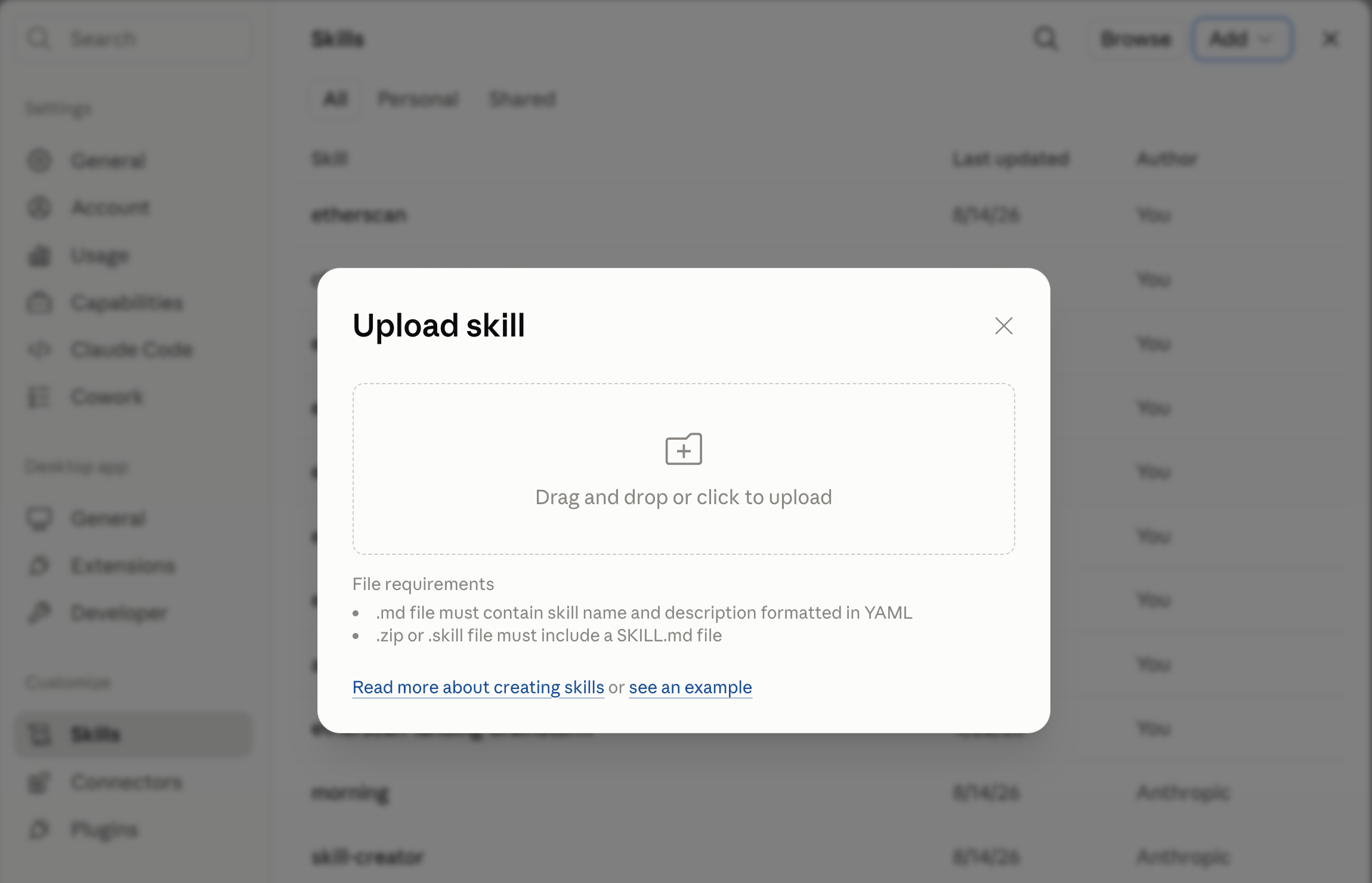 3. The Etherscan skill is now ready to be used.
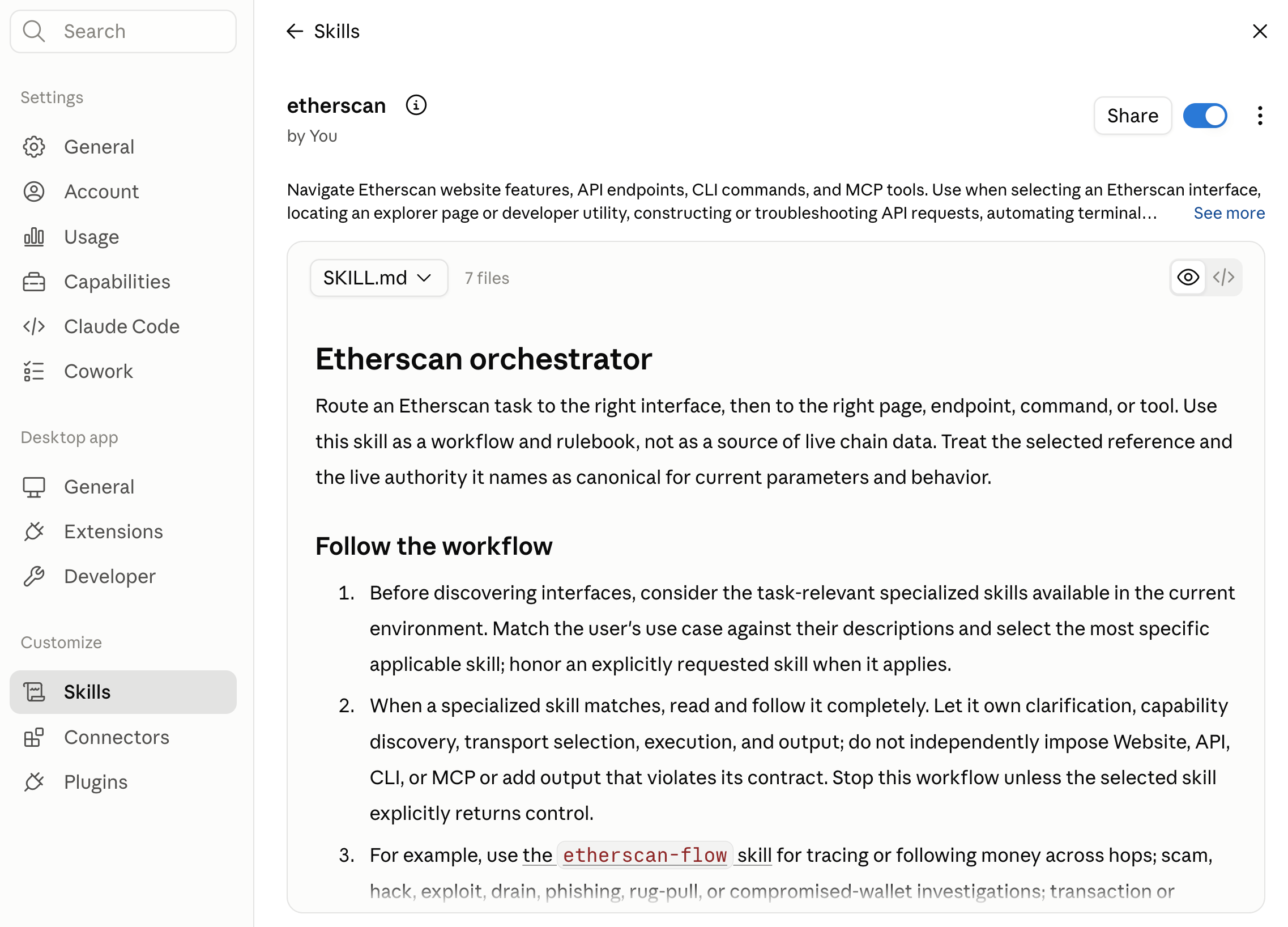 Describe the task in plain language.
```text theme={null}
Get all ERC-20 transfers for 0x9fC3dc011b461664c835F2527fffb1169b3C213e and save them as CSV. use etherscan skill
```
The skill confirms the chain, then routes to whatever interface you have connected ([CLI](/build-with-ai/cli), [MCP](/build-with-ai/mcp), or [API](/endpoint-overview)) and constructs the request to spec.
## More prompts to try
Describe the task in plain language and let the skill pick the interface. Copy one to try it:
```text theme={null}
Build a wallet snapshot for 0xd8dA6BF26964aF9D7eEd9e03E53415D37aA96045 on Ethereum and Arbitrum: native balance, top token holdings, and the 10 most recent transactions.
```
```text theme={null}
Is 0xdAC17F958D2ee523a2206206994597C13D831ec7 verified? Summarize what the contract does and who deployed it.
```
```text theme={null}
Who are the top 10 holders of USDT (0xdAC17F958D2ee523a2206206994597C13D831ec7), and what share does each hold?
```
```text theme={null}
Trace transaction 0x: show its internal transfers and whether it succeeded.
```
```text theme={null}
Resolve vitalik.eth, show its balance, and include any name tags or labels Etherscan has for it.
```
## What it does
The skill guides the agent through a task instead of guessing:
* **Routes to a specialized skill when one fits:** for a dedicated workflow like tracing money flows, it hands off to that skill; otherwise it handles the routing itself.
* **Clarifies the request:** the target chain and chain ID, the address or transaction, and the actual intent.
* **Discovers what is available:** it runs read-only checks for an installed CLI (and its version) and a connected MCP client, then tells you what it found.
* **Selects the interface** best suited to the task, then constructs the request per Etherscan's documented specification and respects authentication, plan, and rate limits.
| Interface | Best for |
| --------- | ------------------------------------------------------------------------------- |
| Website | Explorer pages, user-facing tools, exports, token approvals, contract utilities |
| API | Selecting endpoints, constructing requests, interpreting responses |
| CLI | Terminal commands, automation, and structured output |
| MCP | Agent-driven, read-only tool calls |
The skill never prints your API key and asks for explicit approval before any state-changing action.
Describe the task in plain language.
```text theme={null}
Get all ERC-20 transfers for 0x9fC3dc011b461664c835F2527fffb1169b3C213e and save them as CSV. use etherscan skill
```
The skill confirms the chain, then routes to whatever interface you have connected ([CLI](/build-with-ai/cli), [MCP](/build-with-ai/mcp), or [API](/endpoint-overview)) and constructs the request to spec.
## More prompts to try
Describe the task in plain language and let the skill pick the interface. Copy one to try it:
```text theme={null}
Build a wallet snapshot for 0xd8dA6BF26964aF9D7eEd9e03E53415D37aA96045 on Ethereum and Arbitrum: native balance, top token holdings, and the 10 most recent transactions.
```
```text theme={null}
Is 0xdAC17F958D2ee523a2206206994597C13D831ec7 verified? Summarize what the contract does and who deployed it.
```
```text theme={null}
Who are the top 10 holders of USDT (0xdAC17F958D2ee523a2206206994597C13D831ec7), and what share does each hold?
```
```text theme={null}
Trace transaction 0x: show its internal transfers and whether it succeeded.
```
```text theme={null}
Resolve vitalik.eth, show its balance, and include any name tags or labels Etherscan has for it.
```
## What it does
The skill guides the agent through a task instead of guessing:
* **Routes to a specialized skill when one fits:** for a dedicated workflow like tracing money flows, it hands off to that skill; otherwise it handles the routing itself.
* **Clarifies the request:** the target chain and chain ID, the address or transaction, and the actual intent.
* **Discovers what is available:** it runs read-only checks for an installed CLI (and its version) and a connected MCP client, then tells you what it found.
* **Selects the interface** best suited to the task, then constructs the request per Etherscan's documented specification and respects authentication, plan, and rate limits.
| Interface | Best for |
| --------- | ------------------------------------------------------------------------------- |
| Website | Explorer pages, user-facing tools, exports, token approvals, contract utilities |
| API | Selecting endpoints, constructing requests, interpreting responses |
| CLI | Terminal commands, automation, and structured output |
| MCP | Agent-driven, read-only tool calls |
The skill never prints your API key and asks for explicit approval before any state-changing action.