The Etherscan MCP server connects AI agents to live onchain data across all 60+ supported chains, over MCP. Connect it to a client like Claude Desktop, Claude Code, or Codex, then ask in plain language and get answers grounded in real Etherscan API responses.
One connection covers every chain, just pass the chainid. Ask about Arbitrum and the agent uses chainid=42161. See Supported chains for the full list.
Only one official Etherscan MCP server exists: https://mcp.etherscan.io/mcp. Listings on MCP marketplaces or directories that call themselves “Etherscan MCP” are unofficial and unaffiliated with Etherscan. Do not paste your API key into them.
Connection details
Point your MCP client at the server with these values. For guided, per-client setup, see Get started below.
- Transport: Streamable HTTP.
- Authentication: send your Etherscan API key as
Authorization: Bearer <your API key>.
Get started
First, create a free API key if you do not have one. Then pick your client below and follow it end to end.
Claude Desktop
Claude Code CLI
Codex Desktop
Codex CLI
Claude Desktop is Anthropic’s desktop chat app.Add Etherscan to your config
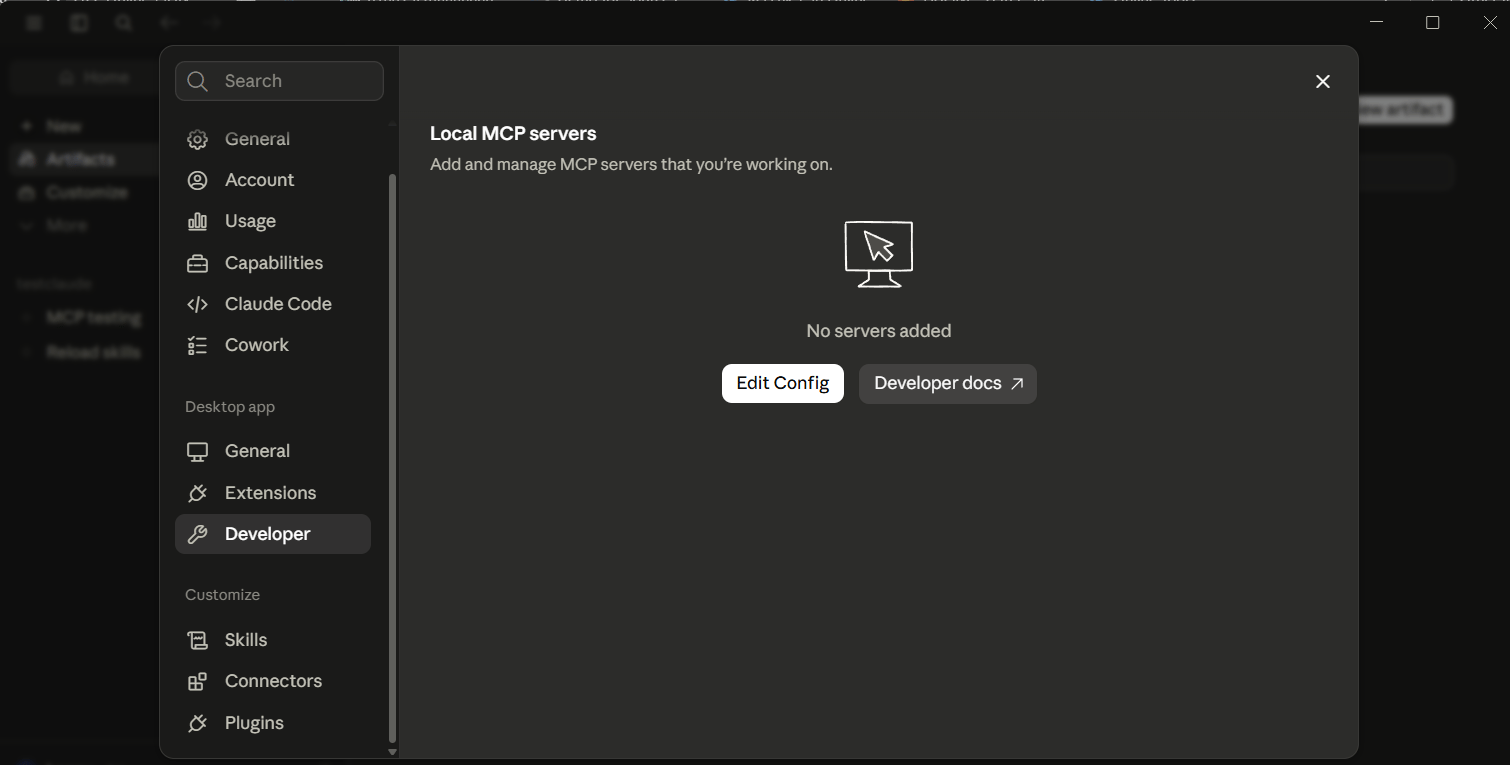
In Claude Desktop, open Settings > Developer > Edit Config to open the claude_desktop_config.json file.In the file that opens, add the etherscan server (replace YourApiKey with your key):claude_desktop_config.json
Requires Node.js. Confirm it's connected
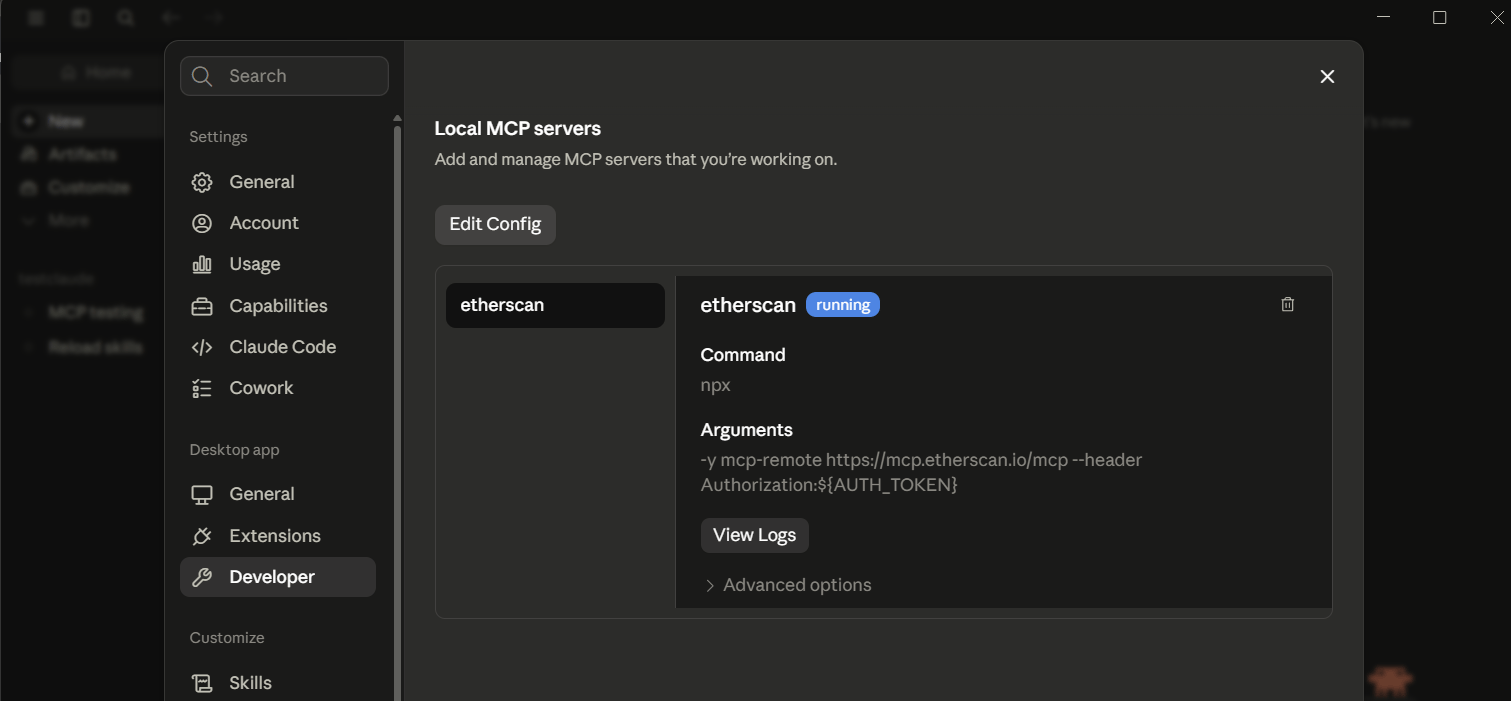
Save, then fully quit Claude Desktop and reopen it. Then open Settings > Developer and look for etherscan under Local MCP servers with a running badge. Ask your first question
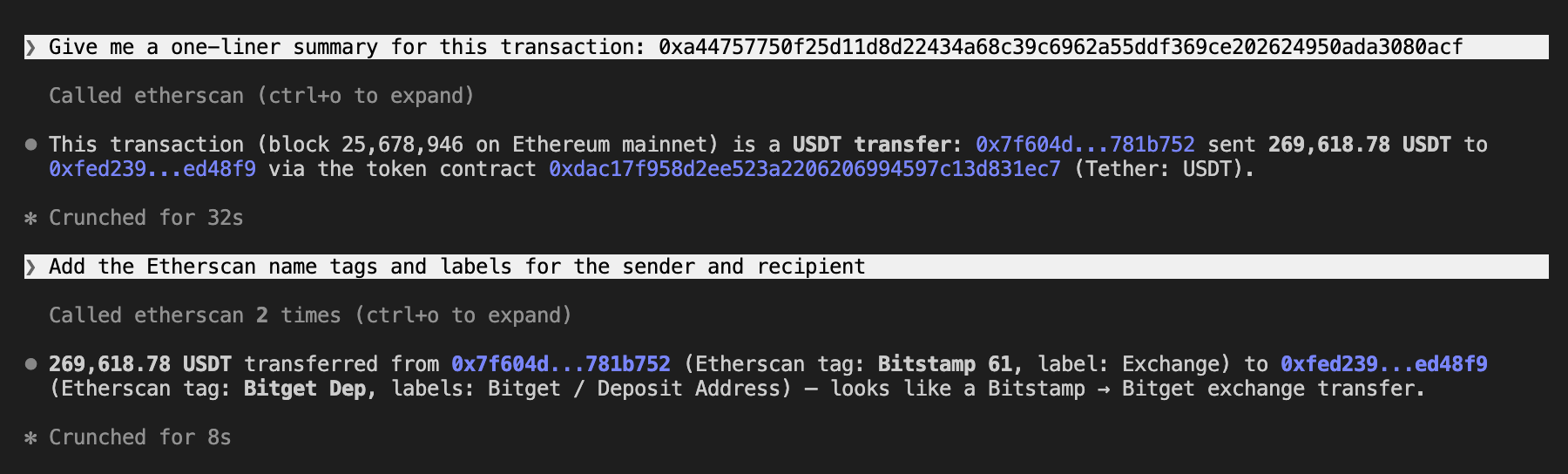
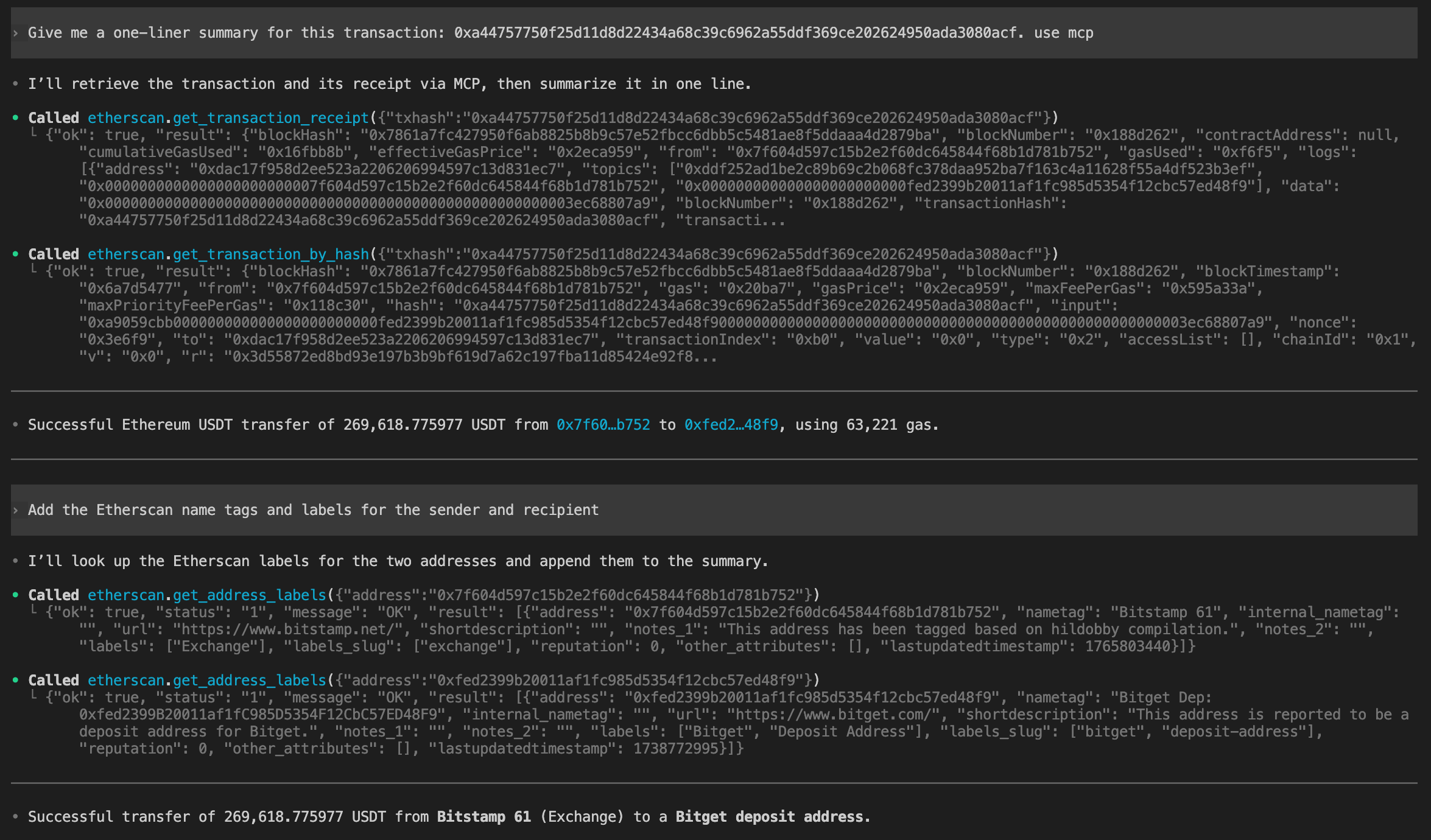
Ask in plain language and approve the tool calls when prompted:In this example, it calls two tools:
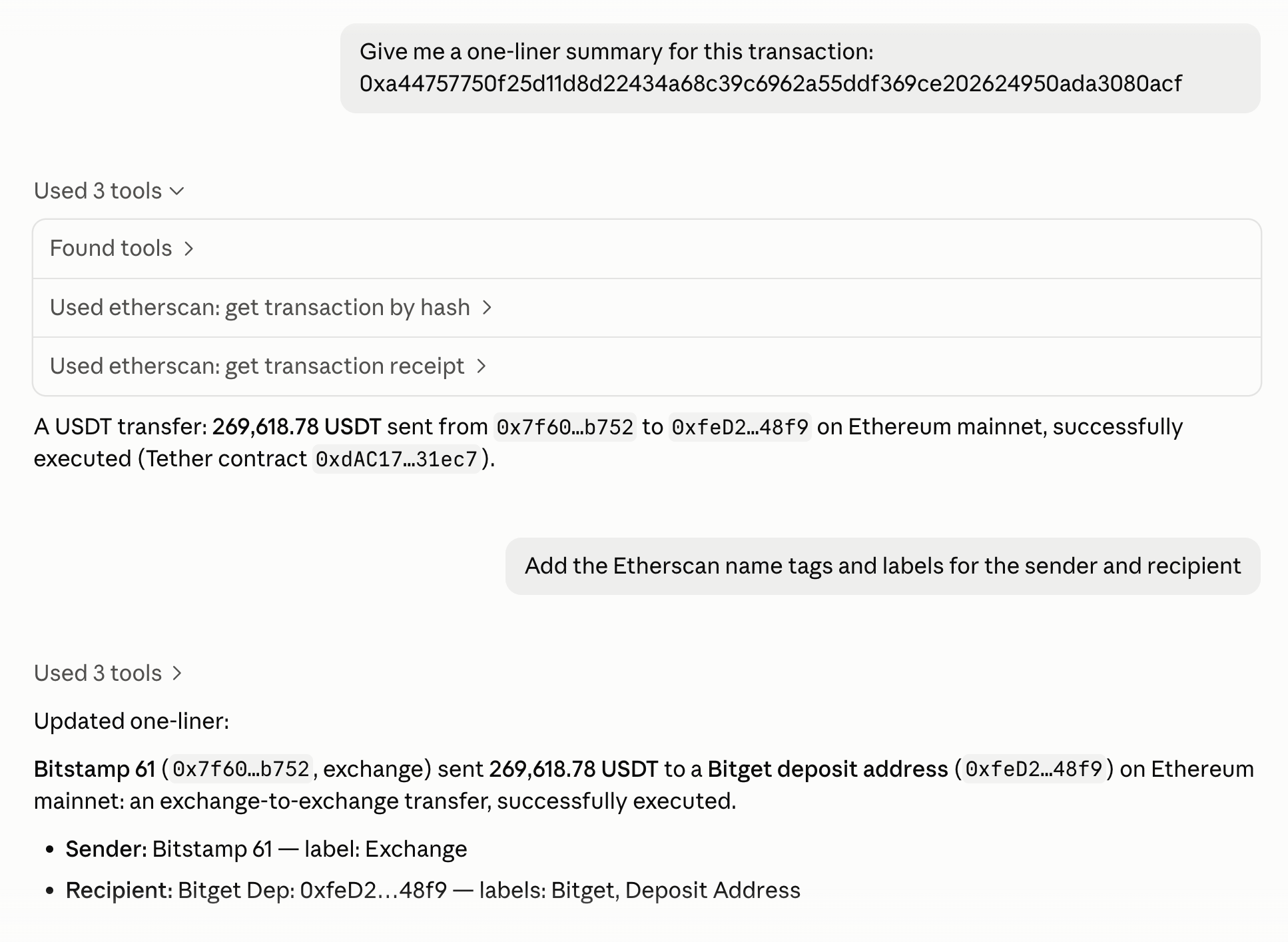
get_transaction_by_hash for the sender, recipient, amount, and input data
get_transaction_receipt to confirm the transaction succeeded
It then answers with a one-line summary. Both tools work on the free API plan.To label the addresses involved with their Etherscan name tags, follow up with:This uses get_address_labels, a Pro tool that requires a paid plan. Claude Code is Anthropic’s coding assistant that runs in your terminal.Add the server
Run this in your terminal, replacing YourApiKey with your key: Confirm it's connected
Check the server’s status and look for Status: ✔ Connected: Ask your first question
Start a Claude Code session by running claude, then ask in plain language and let the agent pick the tools:In this example, it calls the tool get_transaction_by_hash for the sender, recipient, amount, and input data. It then answers with a one-line summary. This tool works on the free API plan.To label the addresses involved with their Etherscan name tags, follow up with:This uses get_address_labels, a Pro tool that requires a paid plan. Codex Desktop is the ChatGPT desktop app running OpenAI’s Codex agent, which can connect to MCP servers.Add the server
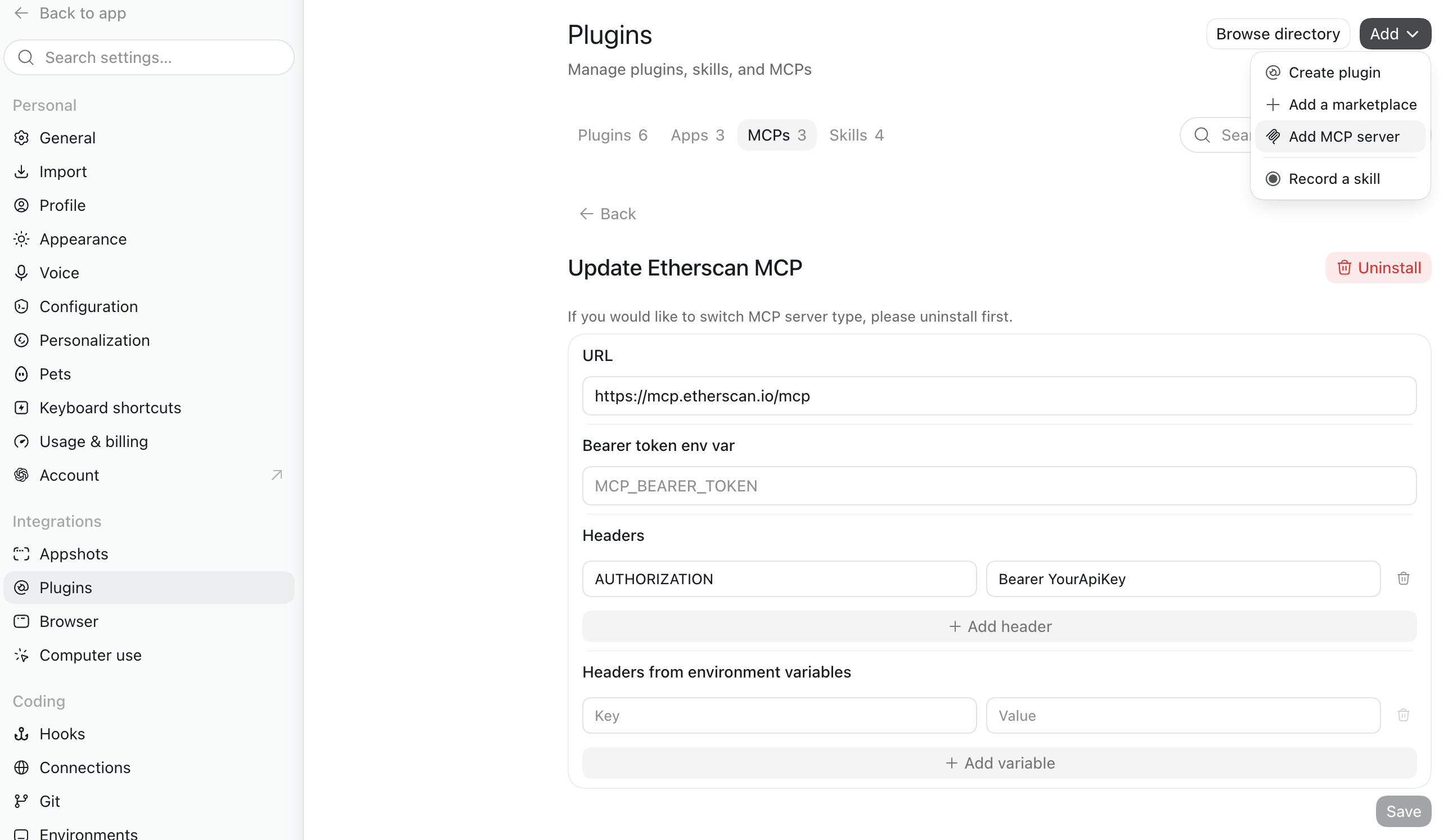
In Codex Desktop, open Settings > Plugins > Add > Add MCP Server.Enter the following server details (replace YourApiKey with your key):
- Name: Etherscan MCP
- Type: Streamable HTTP
- URL:
https://mcp.etherscan.io/mcp
- Headers:
Key=AUTHORIZATION, Value=Bearer YourApiKey
Confirm it's connected
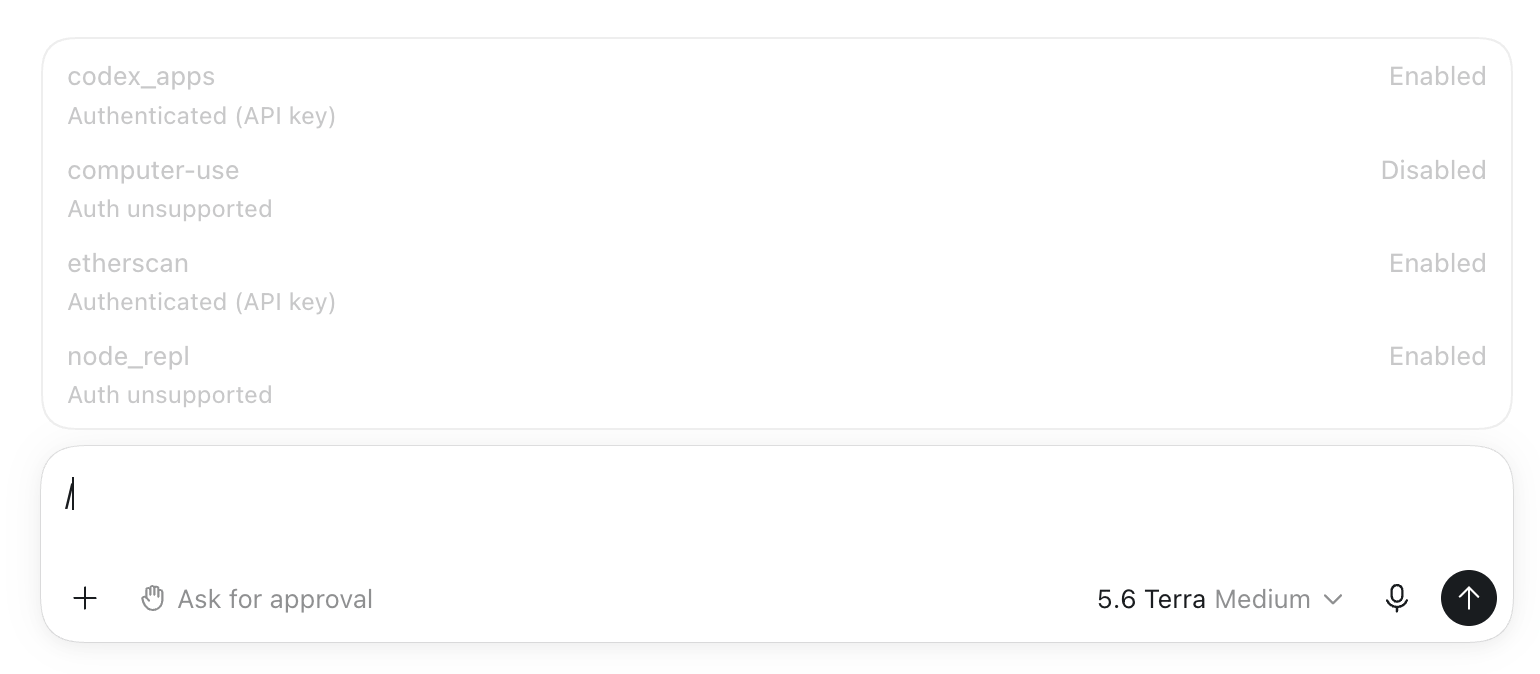
Save, then fully quit Codex Desktop and reopen it. Then run /mcp and confirm that etherscan is listed as an enabled server. Ask your first question
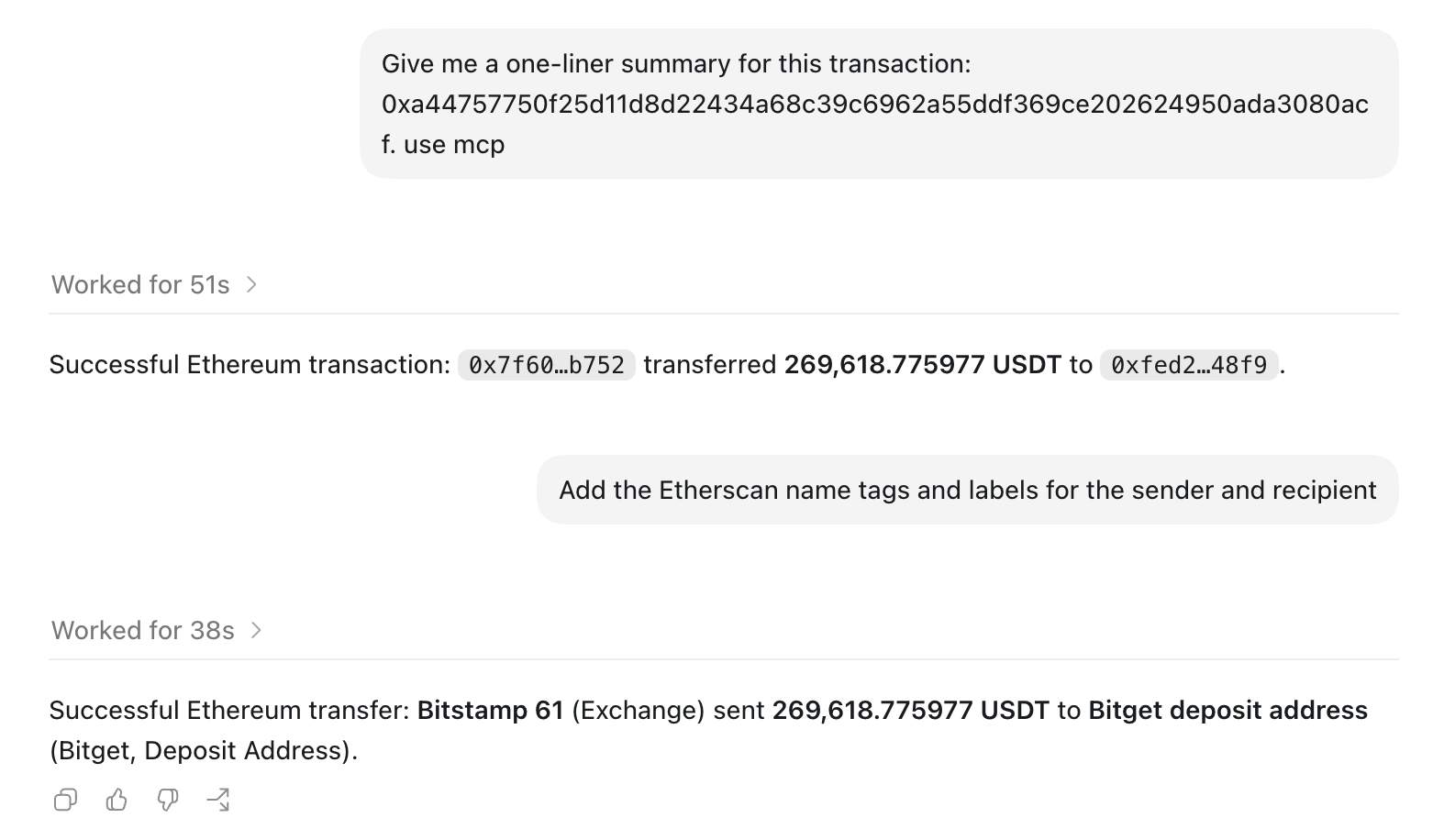
Ask in plain language:In this example, it calls two tools:
get_transaction_by_hash for the sender, recipient, amount, and input data
get_transaction_receipt to confirm the transaction succeeded
It then answers with a one-line summary. Both tools work on the free API plan.To label the addresses involved with their Etherscan name tags, follow up with:This uses get_address_labels, a Pro tool that requires a paid plan. Codex CLI is OpenAI’s coding agent in your terminal.Set your API key as an environment variable
Run this in your terminal (replace YourApiKey with your key): Add the server
Run this in your terminal: Confirm it's connected
Check the server and look for enabled: true: Ask your first question
Start a Codex session by running codex, then ask in plain language and let the agent pick the tools:In this example, it calls two tools:
get_transaction_by_hash for the sender, recipient, amount, and input data
get_transaction_receipt to confirm the transaction succeeded
It then answers with a one-line summary. Both tools work on the free API plan.To label the addresses involved with their Etherscan name tags, follow up with:This uses get_address_labels, a Pro tool that requires a paid plan.
Example prompts
Ask in plain language and let the agent pick the tools. Copy one to try it:
The server exposes 20 tools. The agent selects and calls them for you; you rarely name a tool yourself.
Good to know
- Read-only. Every tool reads public onchain data. Nothing signs or sends a transaction.
- Every tool call uses your API quota. Each MCP tool call makes one or more Etherscan API requests, and every request counts toward your API plan’s rate limits, exactly like calling the API directly. See Rate limits.
- Guard against prompt injection. Enable your client’s human-confirmation prompts, and be cautious when combining Etherscan with other MCP servers in the same session.